Create an API key
Create an API key in the console, choose the models and channels it may call, set a spend limit, and save the key shown only once.
Every tool you connect to HopsAPI needs an API key. This page is the full creation flow that the integration guides link to.
1. Open the API Keys page
Sign in to the console, click API Keys in the left sidebar, then click + Create API Key at the top right.
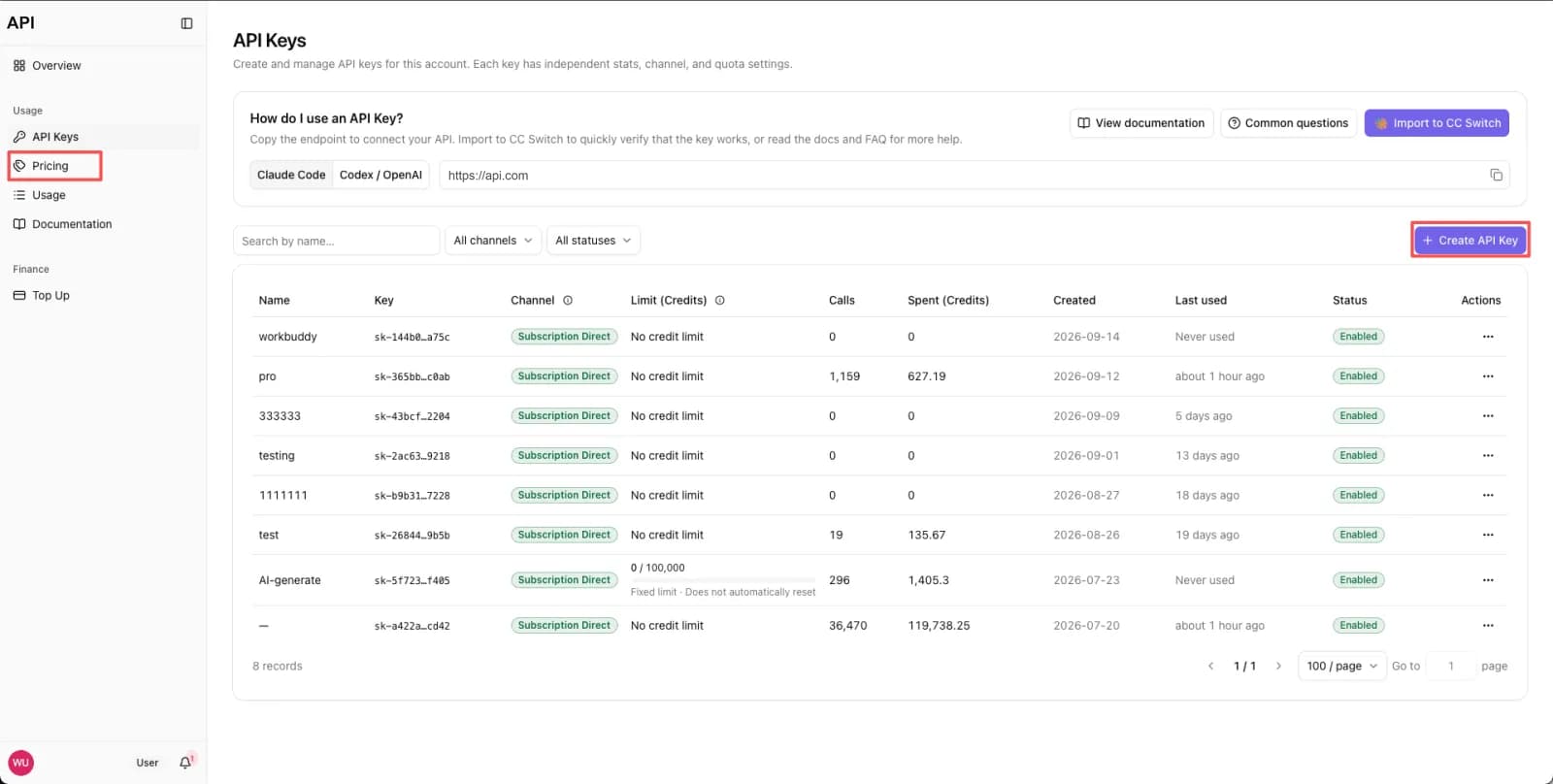
2. Name it and pick the models
Fill in the Create API Key dialog:
| Field | What it does |
|---|---|
| Purpose | The key's name, used to tell keys apart in the list - for example workbuddy |
| Models | Click the model selector and tick the models this key may call; models available through both channels switch together using the preference above them |
| Limit type | Defaults to unlimited; change it to a capped period limit if you need one |
Click Create API Key when done.
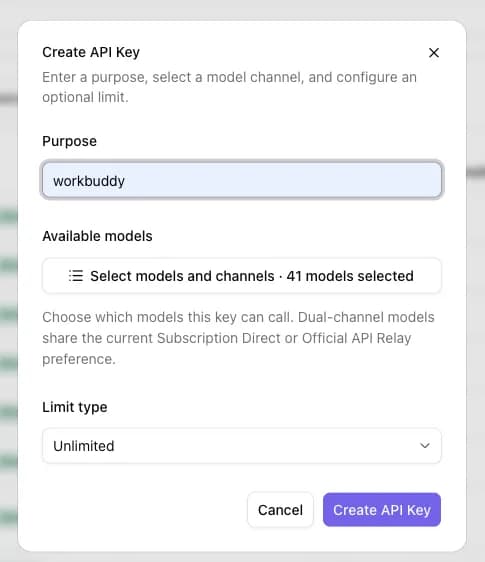
A key can only call the models ticked here, and GET /v1/models returns exactly that set. You can
change the selection later from the API Keys page.
Enable multiple channels in the dialog is off by default, and worth turning on for long-running tasks. With it enabled, models available on both channels are tried in preferred → other order: when your preferred channel is unavailable the request switches to the other one instead of failing. The two channels are priced differently, and you are billed for the channel that actually served the request, so the amount for one call varies with the channel it ended up on. Leave it off and every model always uses the channel you selected. Image and video models do not support multiple channels yet.
3. Copy and store the key
The dialog then shows the full token, beginning with sk-. Click Copy API Key and put it straight into a password manager or a secure environment variable.
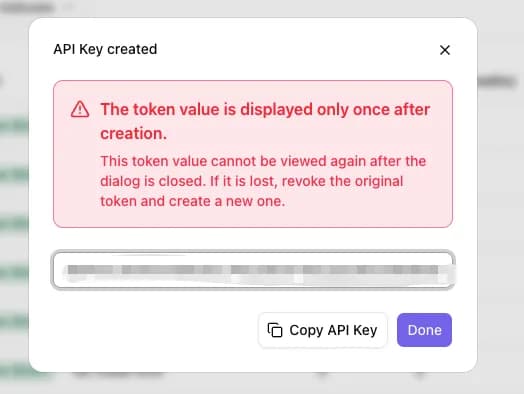
The token is shown only once, at creation. Once the dialog closes you cannot view it again - the list shows only a masked value. If you lose it, revoke the old key and create a new one.
Next steps
- A new account can create keys and list models with no balance, but paid inference returns
402. Check the balance on the console's Overview page and top up if needed. - With the key in hand, make your first call from Quick start, or follow the guide for your tool under Integrations.
- For key safety and common auth errors, see the FAQ.