Chatbox
Add HopsAPI as a custom model provider in Chatbox using the OpenAI-compatible API.
Chatbox is a cross-platform AI client for Windows, macOS, Linux, iOS, and Android. You can add HopsAPI as a custom model provider in Chatbox and use any available model through the OpenAI-compatible API.
Before you start
- A HopsAPI account and an API key (get one ↗)
- Chatbox installed (download ↗)
Setup steps
Step 1: Open Settings
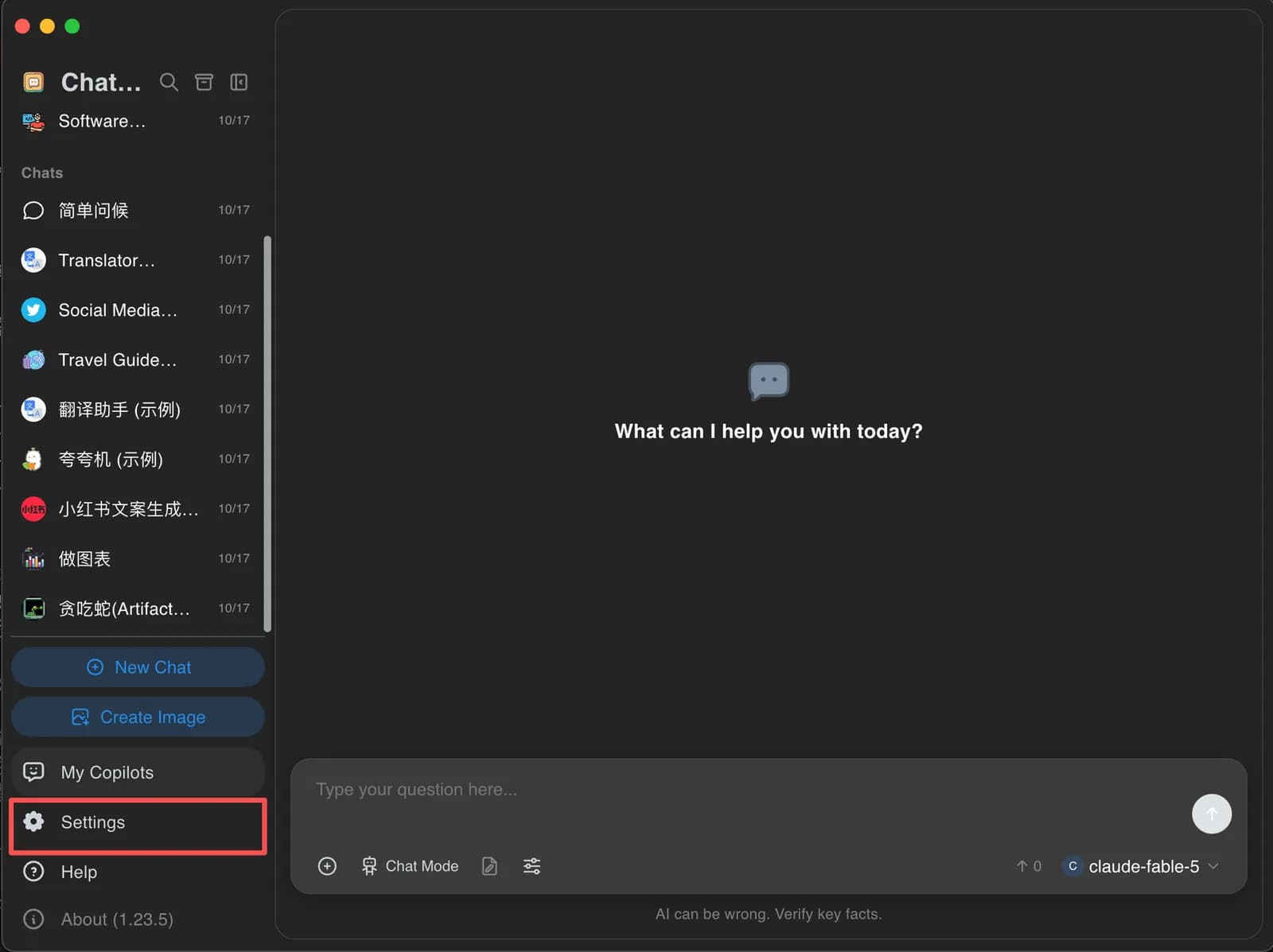
Launch Chatbox and click Settings in the bottom-left corner.
Step 2: Go to Model Provider and click Add
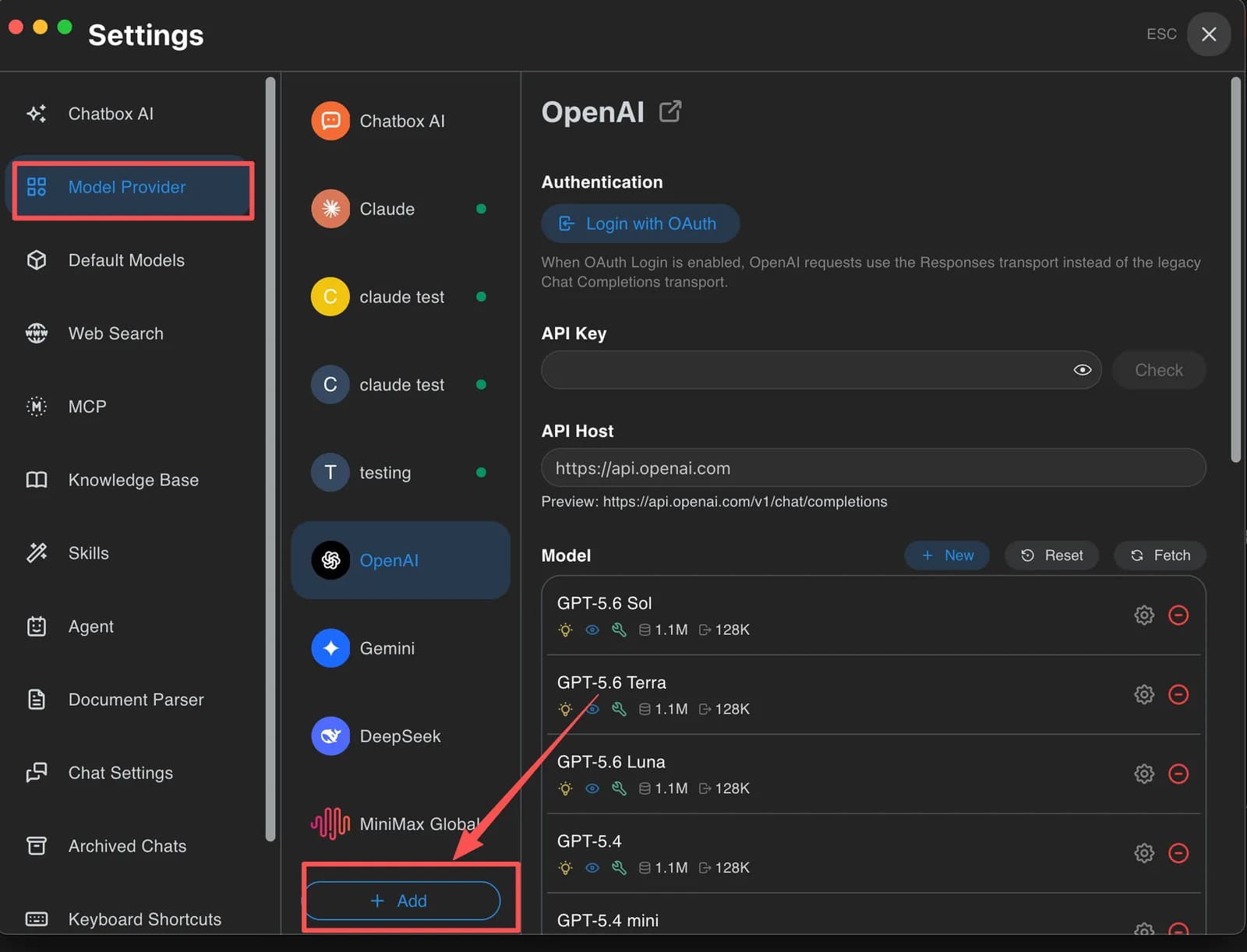
Click Model Provider in the left navigation, scroll to the bottom of the list, and click + Add.
Step 3: Choose Add Custom Provider
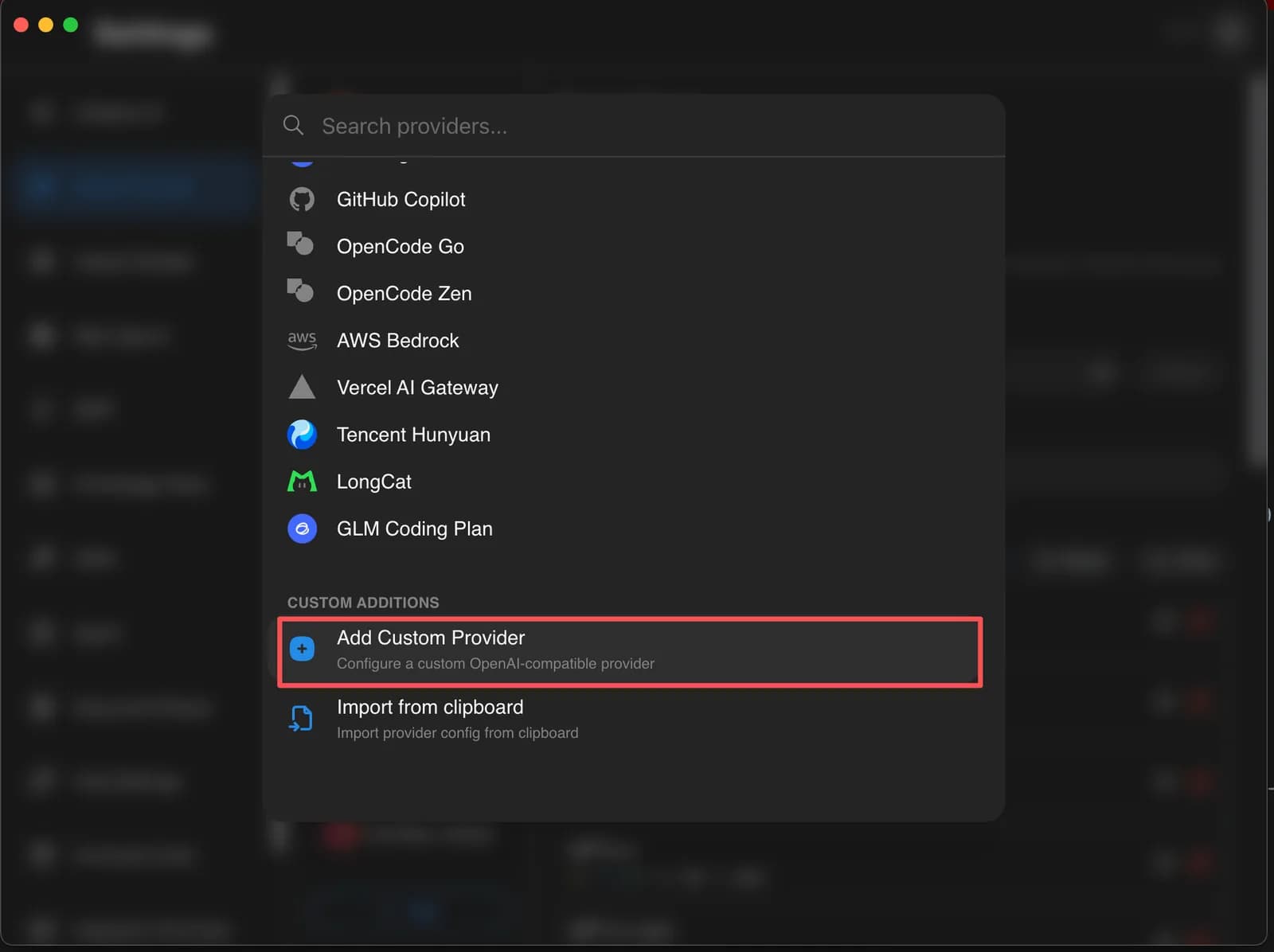
In the provider list that appears, scroll to the Custom Additions section at the bottom and click Add Custom Provider.
Step 4: Enter a name and choose an API mode
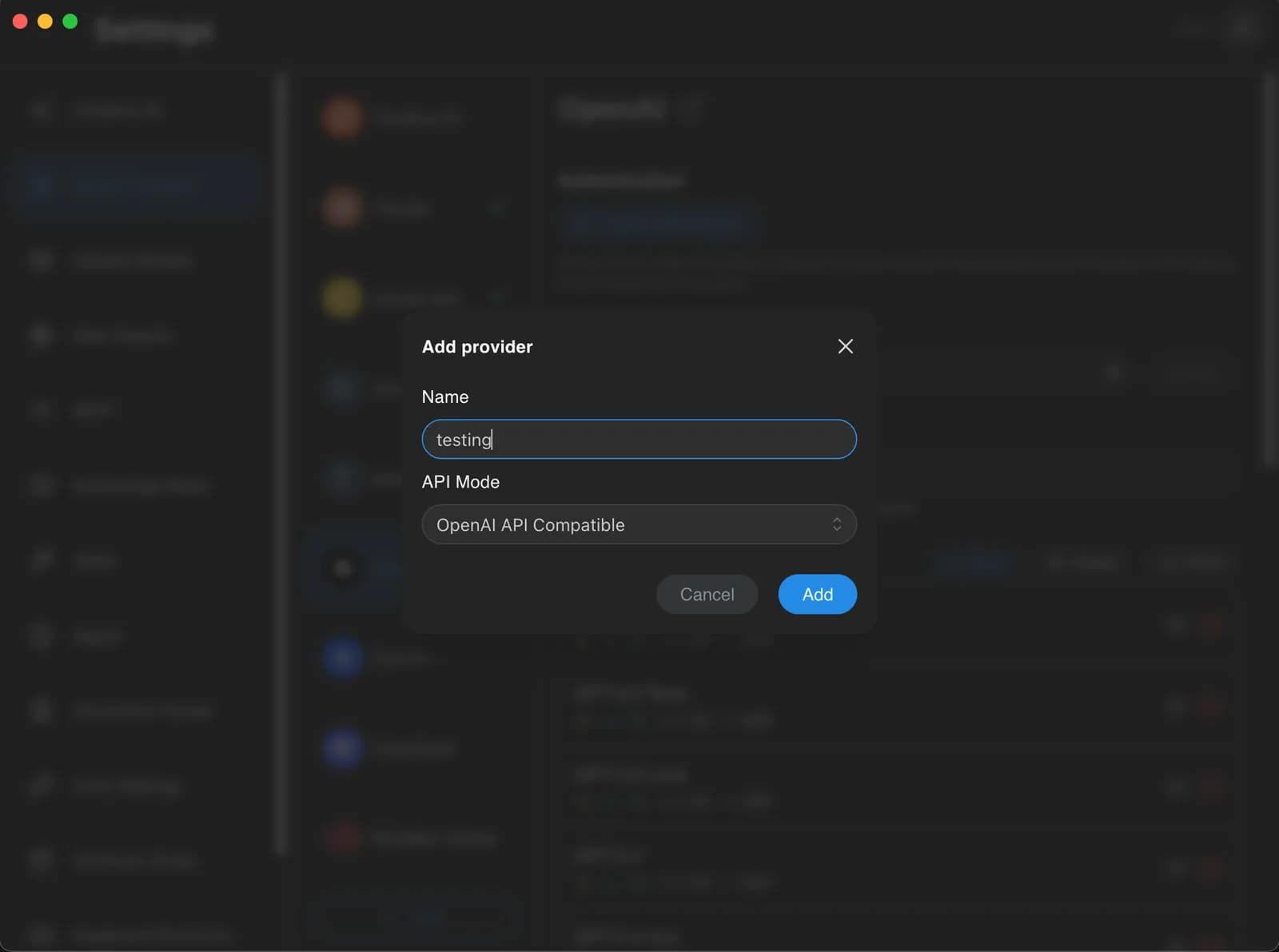
In the dialog that appears, enter a Name (for example, "HopsAPI") and select OpenAI API Compatible from the API Mode dropdown, then click Add.
Step 5: Enter your API key and host, then fetch models
In the new provider settings page, fill in the following fields, then click Fetch to pull the model list automatically.
| Field | Value |
|---|---|
| API Key | Your HopsAPI API key |
| API Host | https://hopsapi.com/v1 |
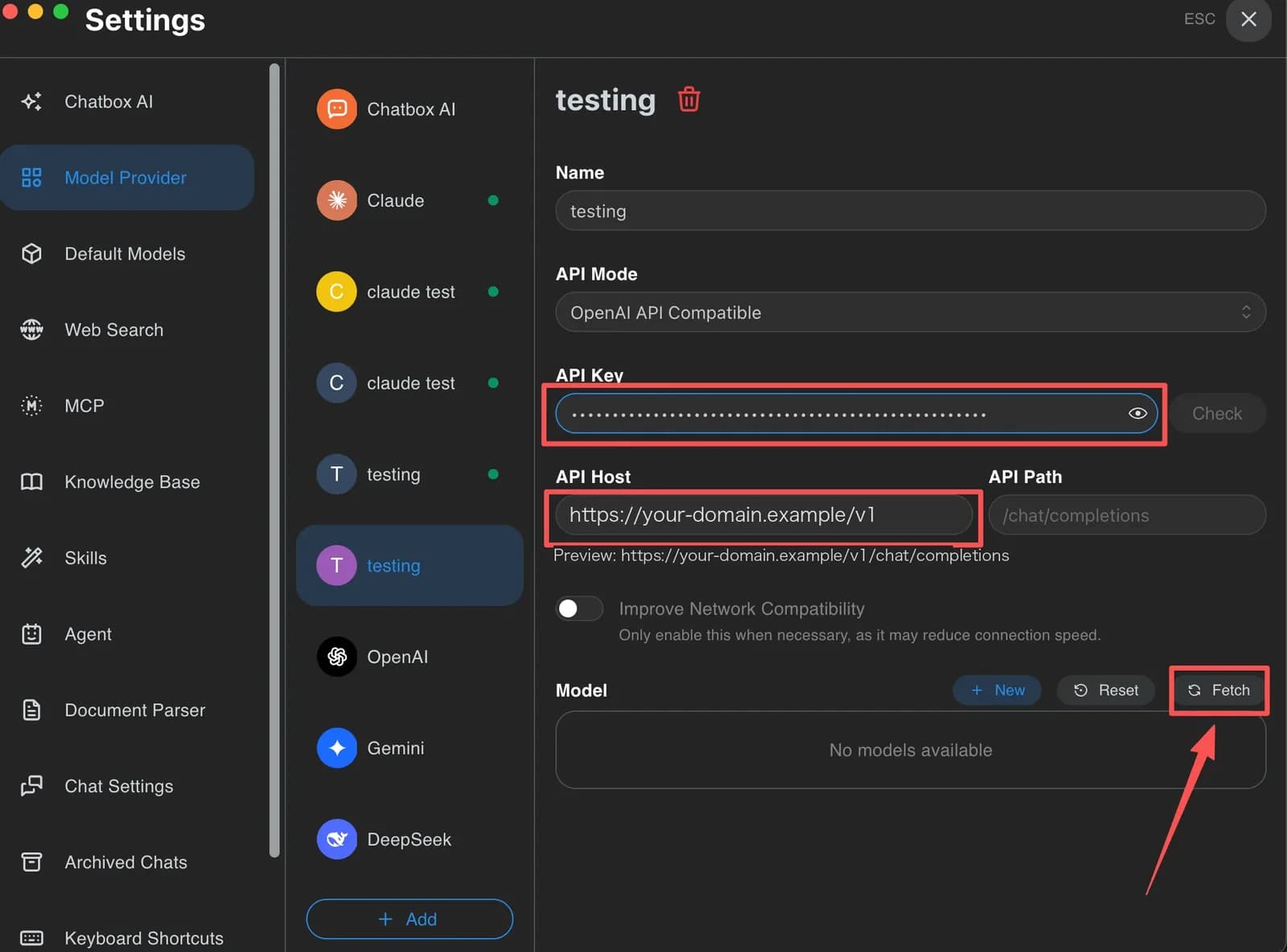
Step 6: Select the models to enable
In the models dialog that appears, click ⊕ next to each model you want to add to your active list, then close the dialog.
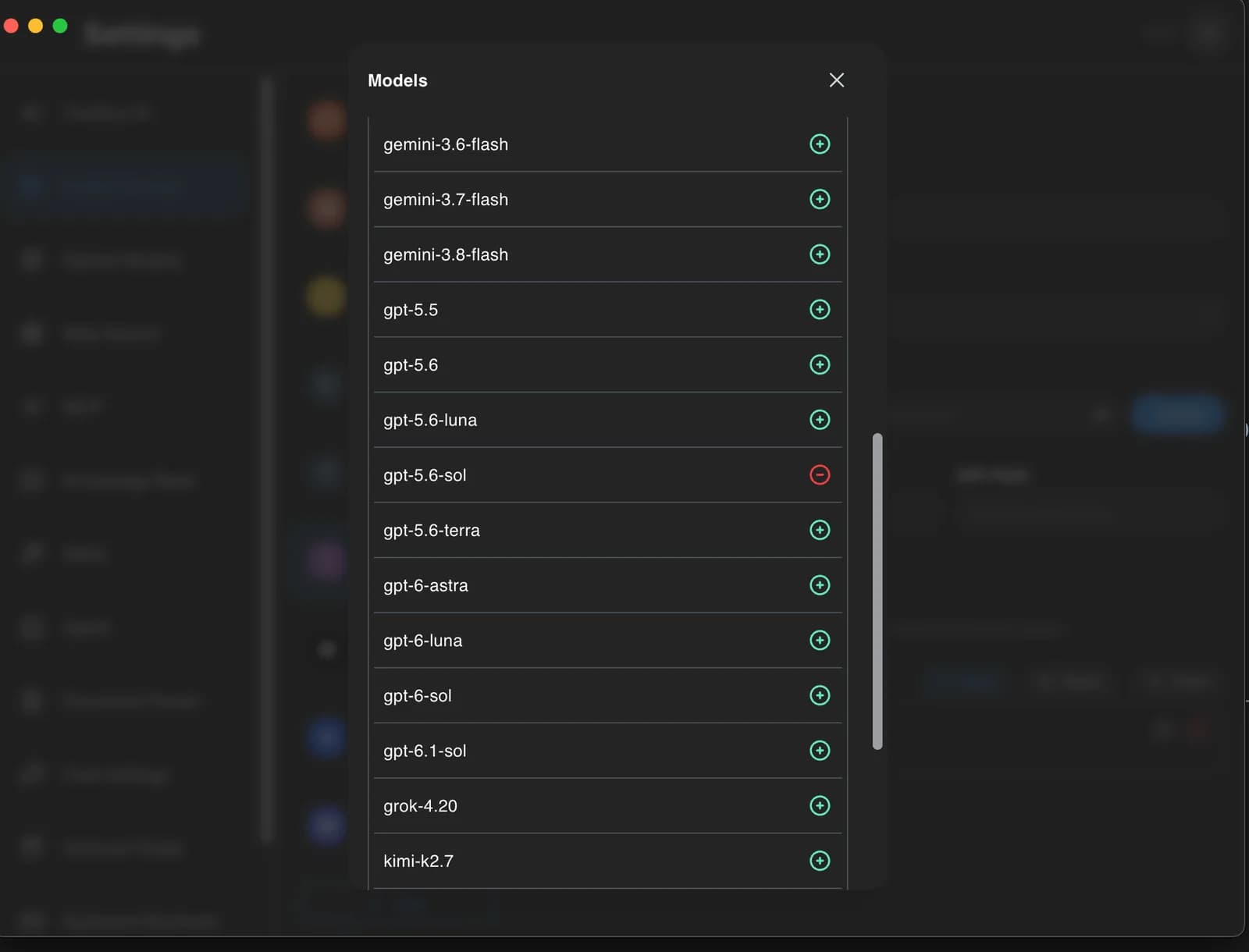
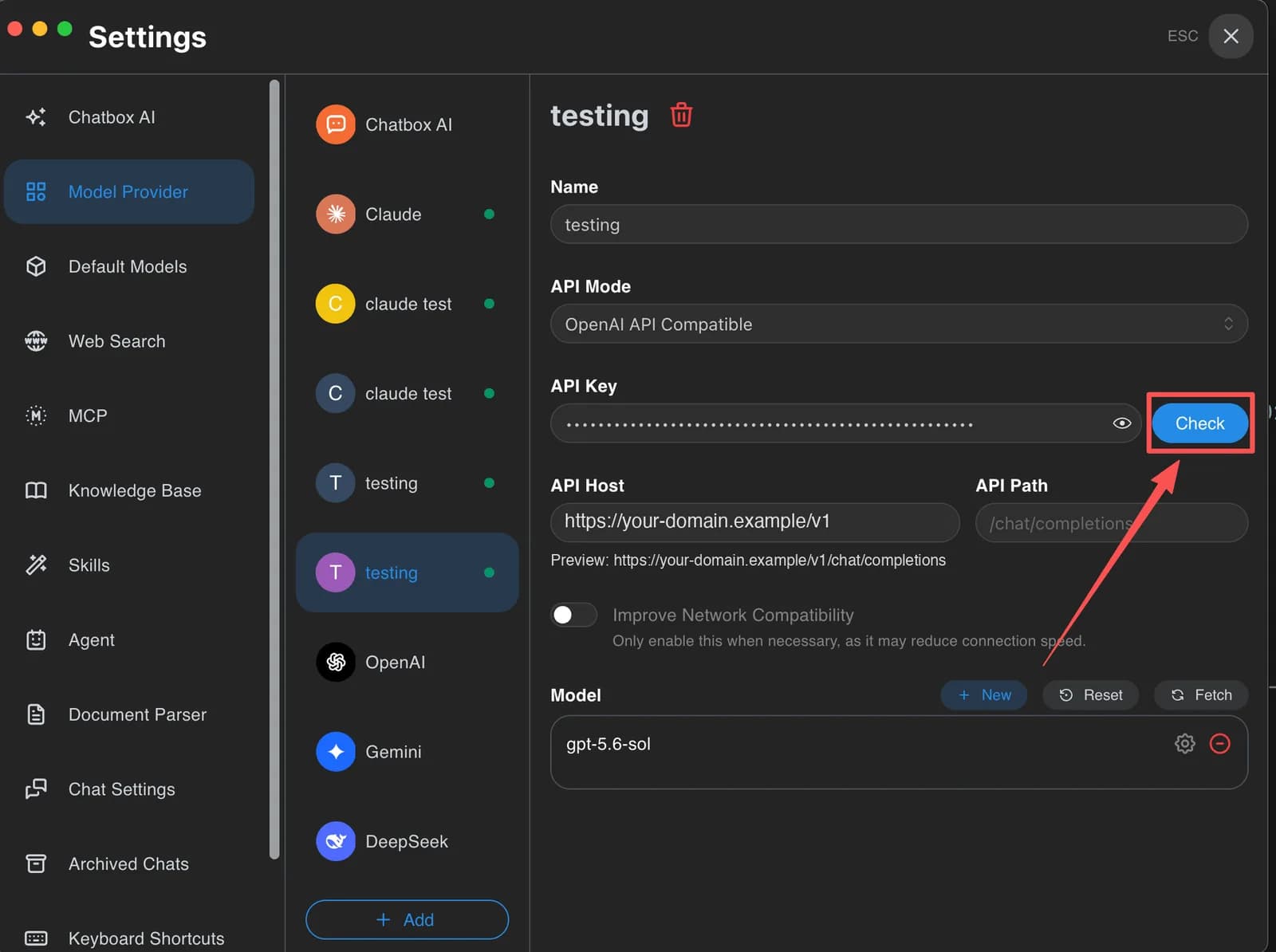
Step 7: Click Check to test the connection
Once a model is added, click the Check button next to the API key field to run a connection test.
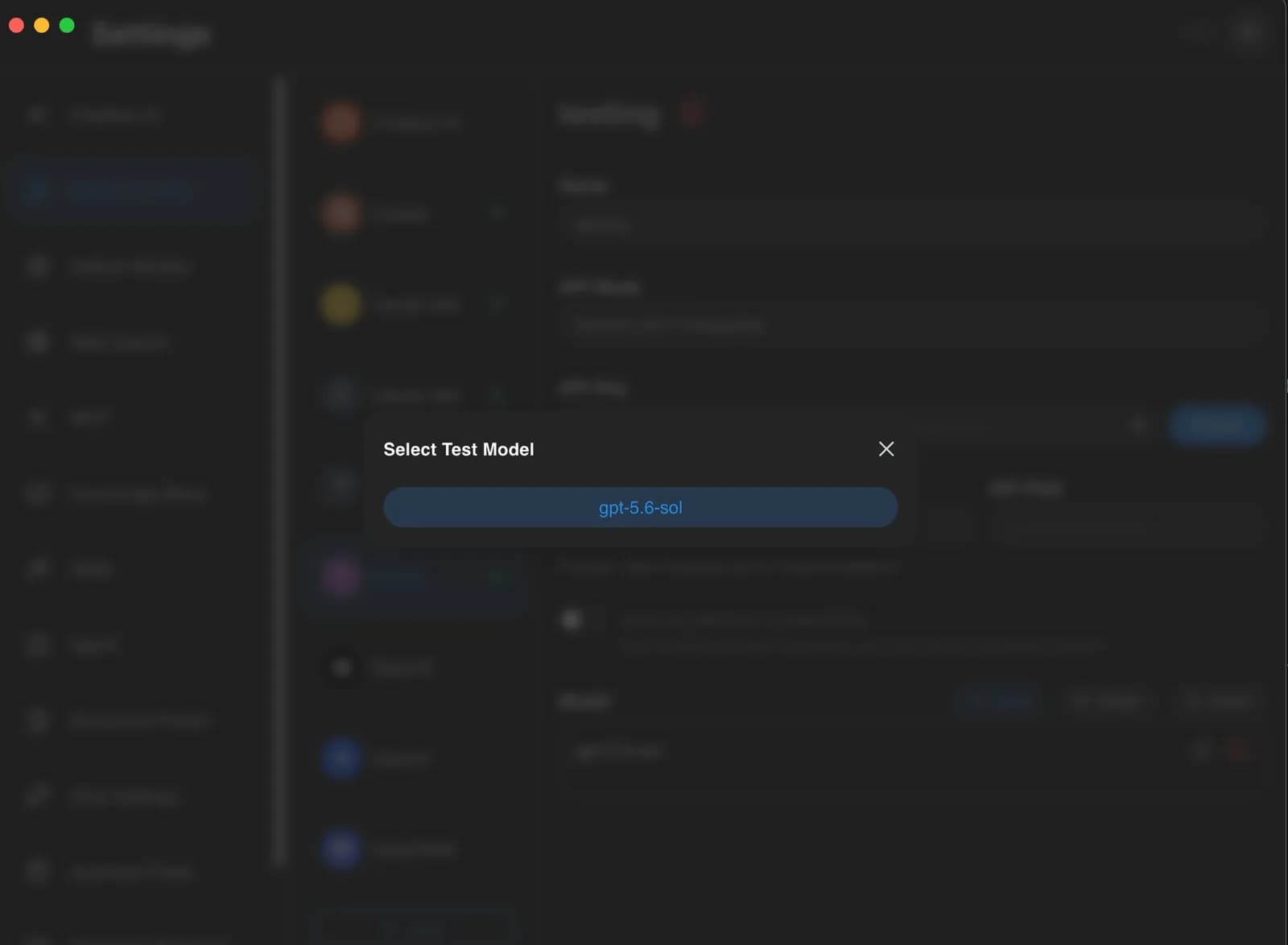
Step 8: Select a test model
In the dialog that appears, select one of your added models to test.
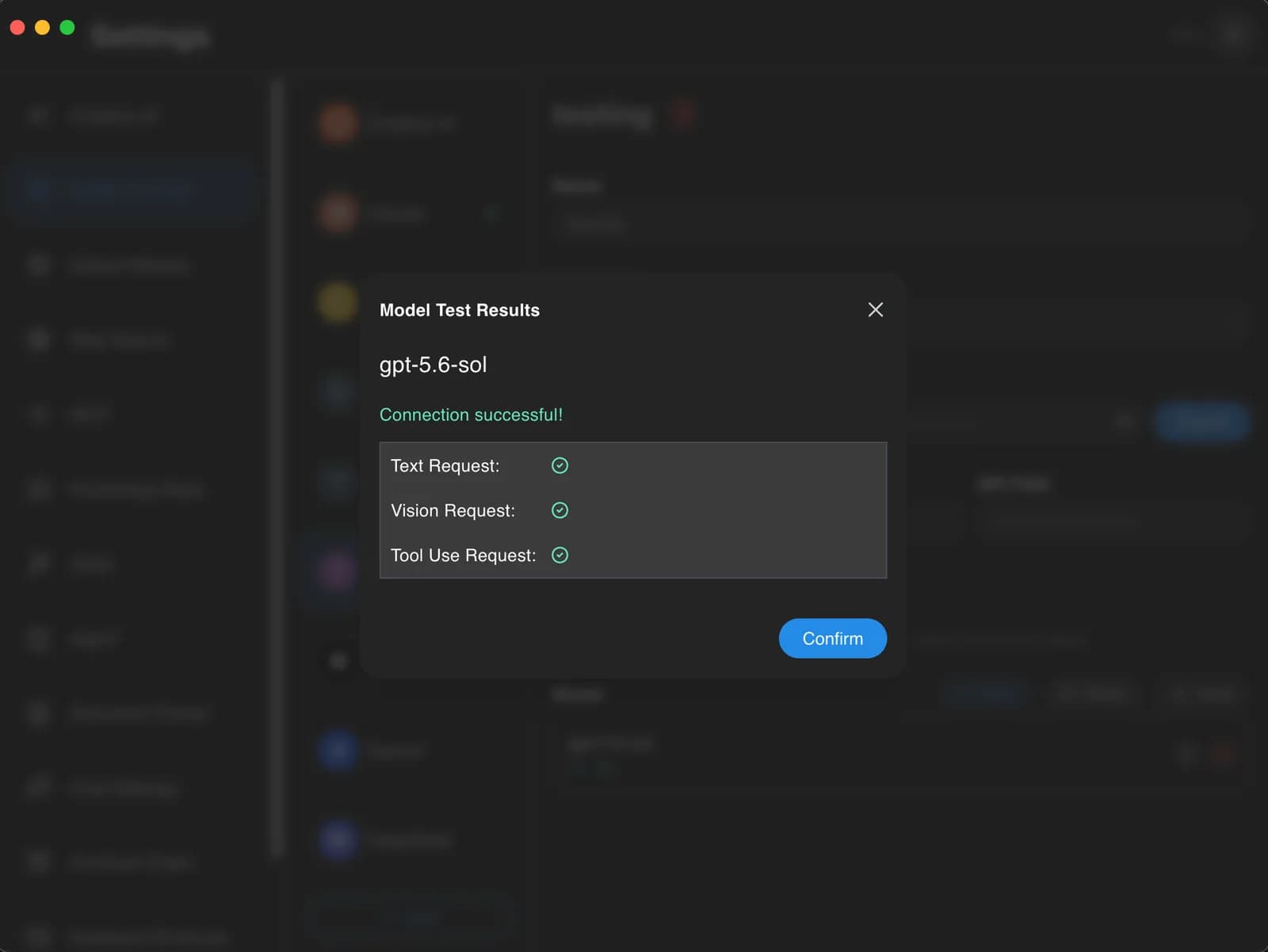
Step 9: Confirm the connection is successful
When the results show Connection successful! with green checkmarks for Text Request, Vision Request, and Tool Use Request, the setup is complete.
Start chatting
Close Settings and return to the main screen. Click the model selector in the bottom-right corner, find the HopsAPI group, and choose the model you want to use.
Troubleshooting
The model list is empty after clicking Fetch
Check that the API host is exactly https://hopsapi.com/v1 with no trailing slash, and that you copied the full API key without extra spaces.
Connection test fails
- Confirm the API key was copied in full from the console with no extra spaces or line breaks
- Confirm the API host is correct
- Check that your network connection is working
- For a 401 error, see Errors