Configure a model provider
Point Codex CLI at HopsAPI's OpenAI Responses endpoint. Import it into CC Switch from the console in one click, add it in CC Switch by hand, or edit config.toml yourself.
Codex talks to OpenAI by default. Switching it to HopsAPI takes a provider block, and it comes down to these three values:
| Setting | Value |
|---|---|
| Base URL | https://hopsapi.com/v1 — no trailing slash |
| Key | An sk-... key from the console; see Create an API key |
| Protocol | OpenAI Responses (wire_api = "responses", the only protocol Codex speaks) |
If you already know where those go, that's the whole story. Otherwise pick one of the three methods below — they all end in the same place:
| Method | Best for | CC Switch required |
|---|---|---|
| Method A: one-click import from the console (recommended) | Almost everyone. The console fills in the URL and model; you paste the key once | Yes |
| Method B: add it in CC Switch by hand | Checking every field yourself, or setting up several model mappings | Yes |
| Method C: manual setup | No extra software, or a headless environment like a server or CI | No |
Before you start
Create an API key
Open the console's API Keys page (1) and click + Create API Key at the top right (2). For the full flow, including model selection and spend limits, see Create an API key.
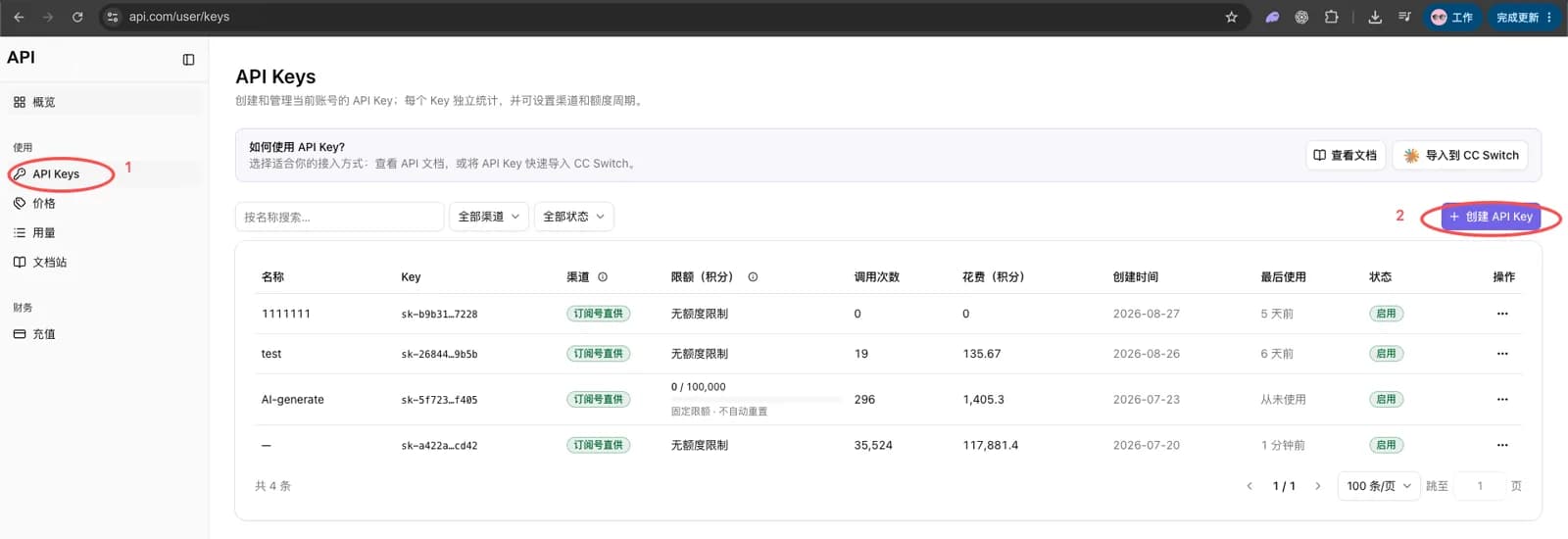
The full key is shown only once, right after you create it — close the dialog and it's gone
for good (the list keeps a mask like sk-b9b31…7228). Copy it there and then, and store it
somewhere safe. A lost key can only be replaced, not recovered.
Install CC Switch
Methods A and B both land the configuration through CC Switch, an open-source provider manager that handles the whole setup through a UI, with no config file or environment variable to edit by hand. Skip this step if you're going with Method C.
Requires macOS 12+, Windows 10+, Ubuntu 22.04+ / Debian 11+ / Fedora 34+.
Method A: one-click import from the console
The console builds a complete HopsAPI provider configuration and hands it to CC Switch. The request URL, configuration name, and model all arrive filled in — you only paste the key. Codex needs the /v1 suffix on its request URL, and the console gets that right for you based on the application you pick.
Step 1: Generate the import
Back on the API Keys page, click Import to CC Switch on the right of the "How do I use an API key?" card, then:
- Switch Application to Codex — the request URL changes to
https://hopsapi.com/v1. - Paste the key you just copied into API Key. The configuration name
HopsAPIis already filled in — leave it alone. - Once the key registers, the Primary model dropdown populates with the models your account can use. Pick one as the default.
- Leave Enable after import on so the provider becomes active as soon as it lands.
- Click Open CC Switch at the bottom right.
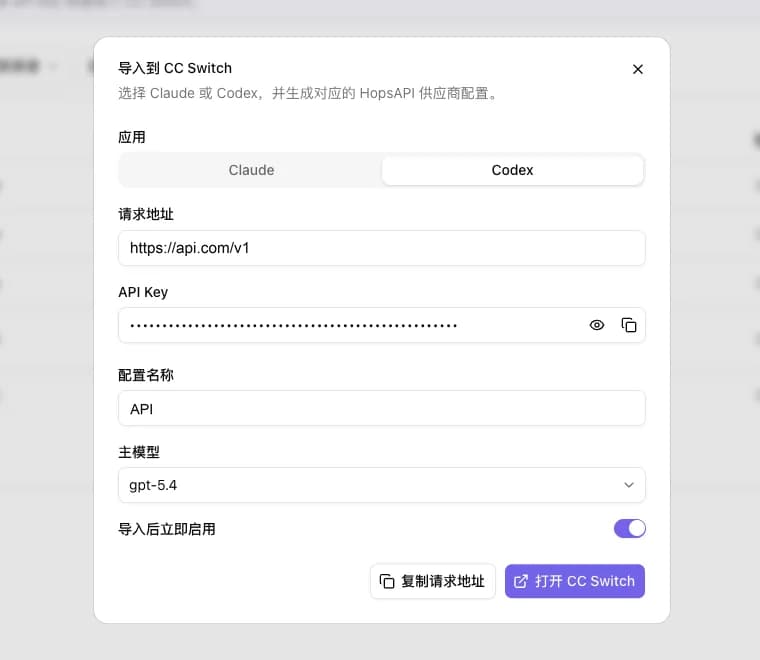
The model name in the screenshot is only an example — what the dropdown actually lists comes from your account. Codex speaks the Responses protocol, so confirm the model you pick supports it in available models.
Step 2: Confirm the import in CC Switch
Your browser launches CC Switch, which opens a confirmation dialog. Check that the application type reads Codex, the API endpoint is https://hopsapi.com/v1, and the masked key matches, then click Import.
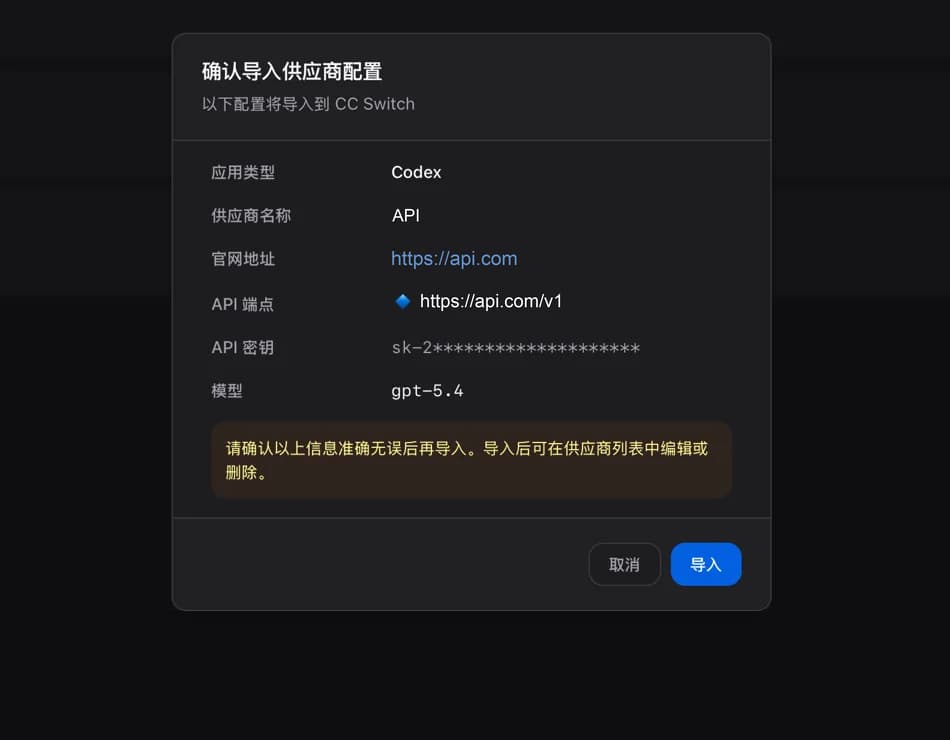
The provider now sits in the CC Switch list, and the key goes into Codex's configuration along with it — no environment variable needed, so you can skip that part of Method C. Skip ahead to Verify.
If Open CC Switch does nothing, CC Switch is usually either missing or too old — one-click import needs a recent build. Install or upgrade it via Install CC Switch and try again. Failing that, switch to Method B; the Copy request URL button in the dialog gives you the URL to carry over.
Method B: add it in CC Switch by hand
With CC Switch installed, you can also fill in every field yourself. This is the easier route if you want several model mappings so Codex's /model command can switch between them.
Step 1: Add a provider
Go to the Codex tab at the top (1) and click the + button at the top right (2).
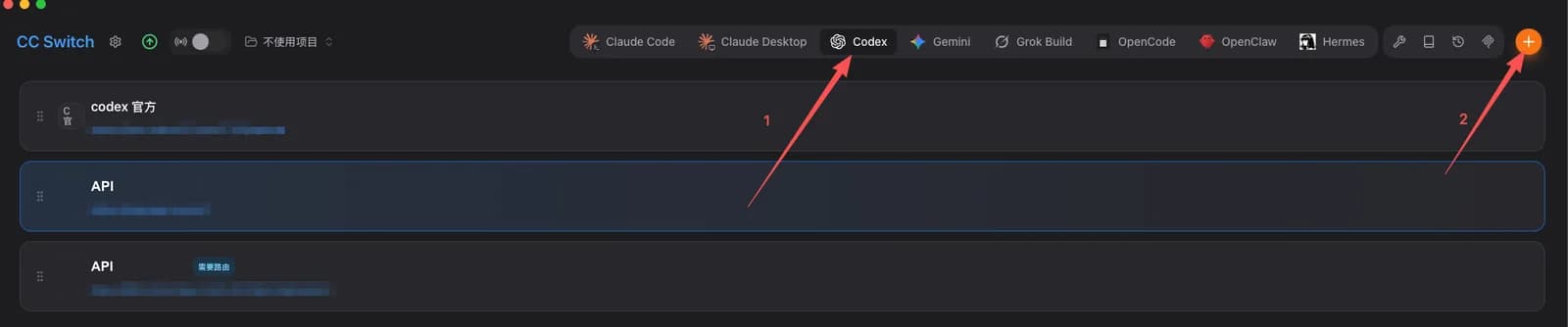
Step 2: Fill in the configuration
Start with the basic fields.
| In image | Field | Value | Notes |
|---|---|---|---|
| 1 | Provider name | HopsAPI-Codex | Anything you like, just make it recognizable |
| 2 | Website | https://hopsapi.com | Optional |
| 3 | API Key | Your HopsAPI key (sk-YOUR_KEY) | From the console's API Keys page |
| 4 | API URL | https://hopsapi.com/v1 | No trailing slash; leave the Full URL toggle beside the label off |
| — | Default model | gpt-5.6-sol | Leave it empty and the first model-mapping row is used |
| — | Upstream format | Responses (native) | Under Advanced. HopsAPI is natively a Responses API, so this talks to it directly with no format translation |
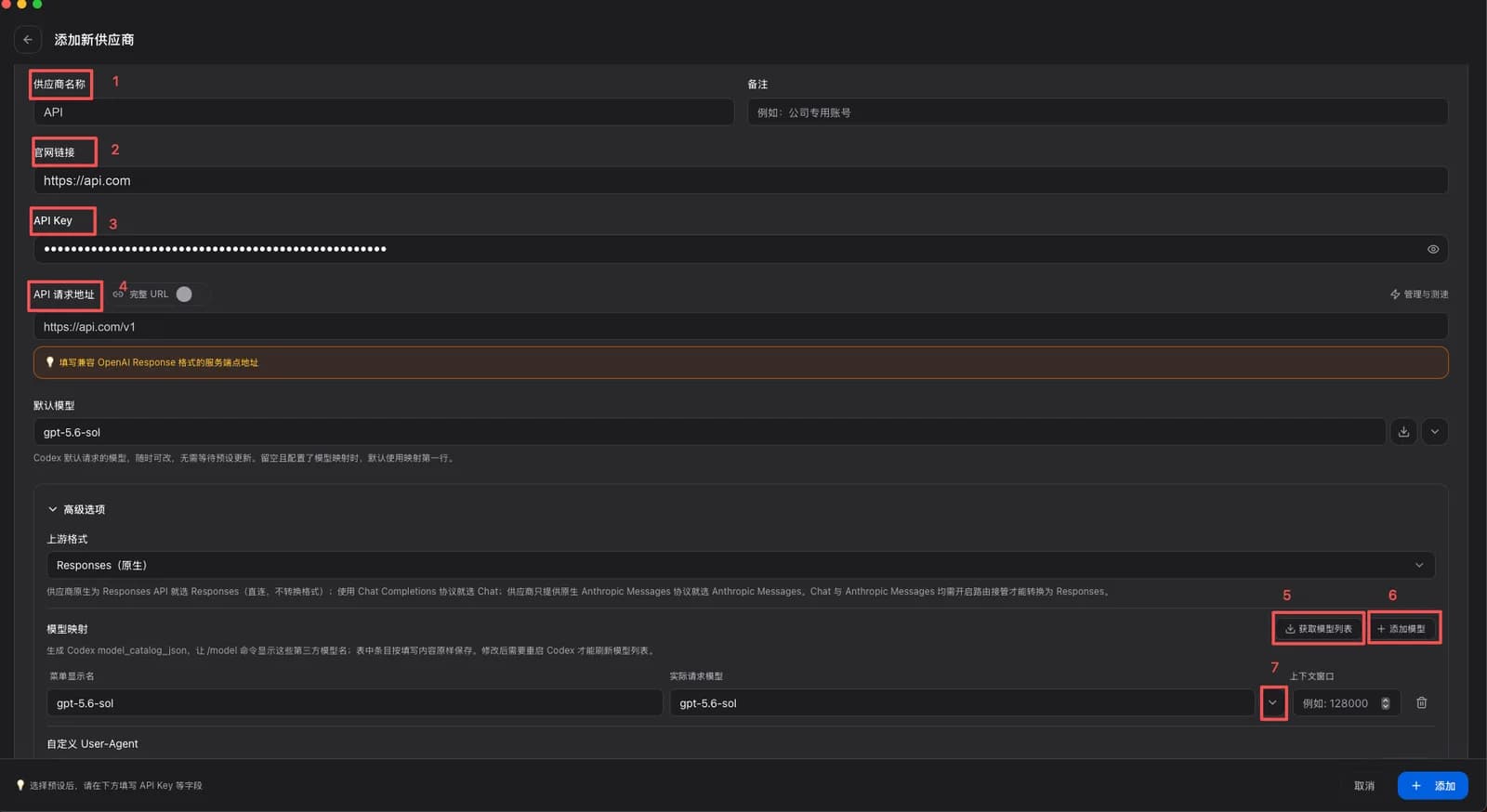
Model mapping controls which models show up in Codex's /model command and the desktop app's model picker. It sits below Advanced, and takes three steps — 5 → 6 → 7 in the image:
- Click Fetch models (5) to pull the available models using the URL and key you just entered.
- Click Add model (6); a new row appears in the table.
- Click the dropdown arrow on that row (7) and pick a model from the list you just fetched. You can also type one in by hand — the Request model column must match available models.
Repeat steps 2 and 3 for each model you want. Restart Codex after changing it.
Finally, scroll down to the config.toml (TOML) block — this is exactly what CC Switch will write. Check Apply shared config at its top right so the settings land in the global ~/.codex/config.toml and apply to every project, then click Add at the bottom right.
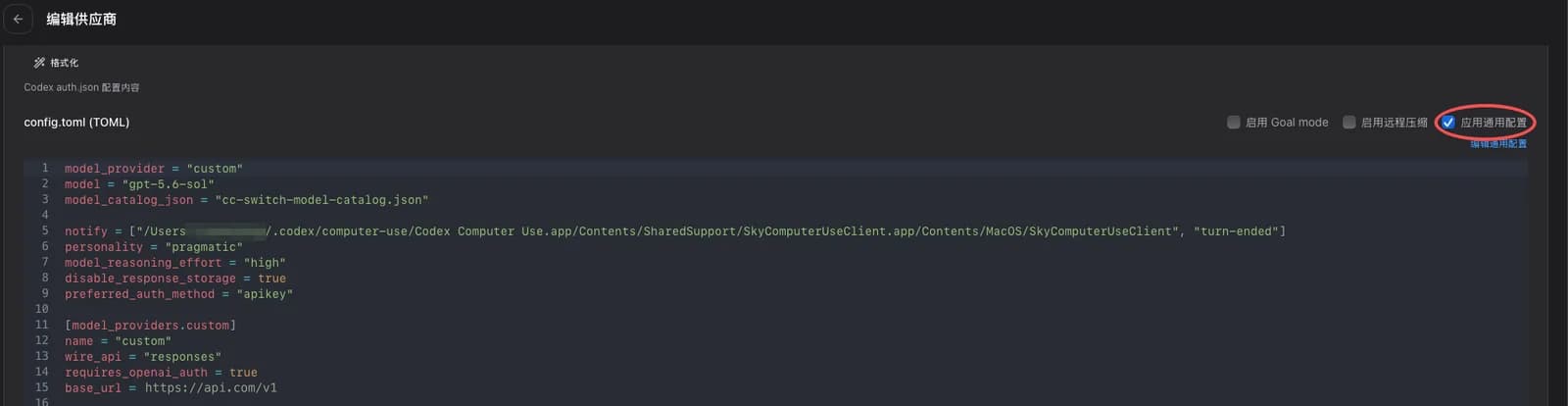
CC Switch writes Codex's configuration for you, key included — nothing to edit by hand, and you can skip the environment variable from Method C.
Step 3: Enable the provider
Back in the list, hover the HopsAPI-Codex row and click the Enable button that appears. The row stays highlighted while it's the active provider.
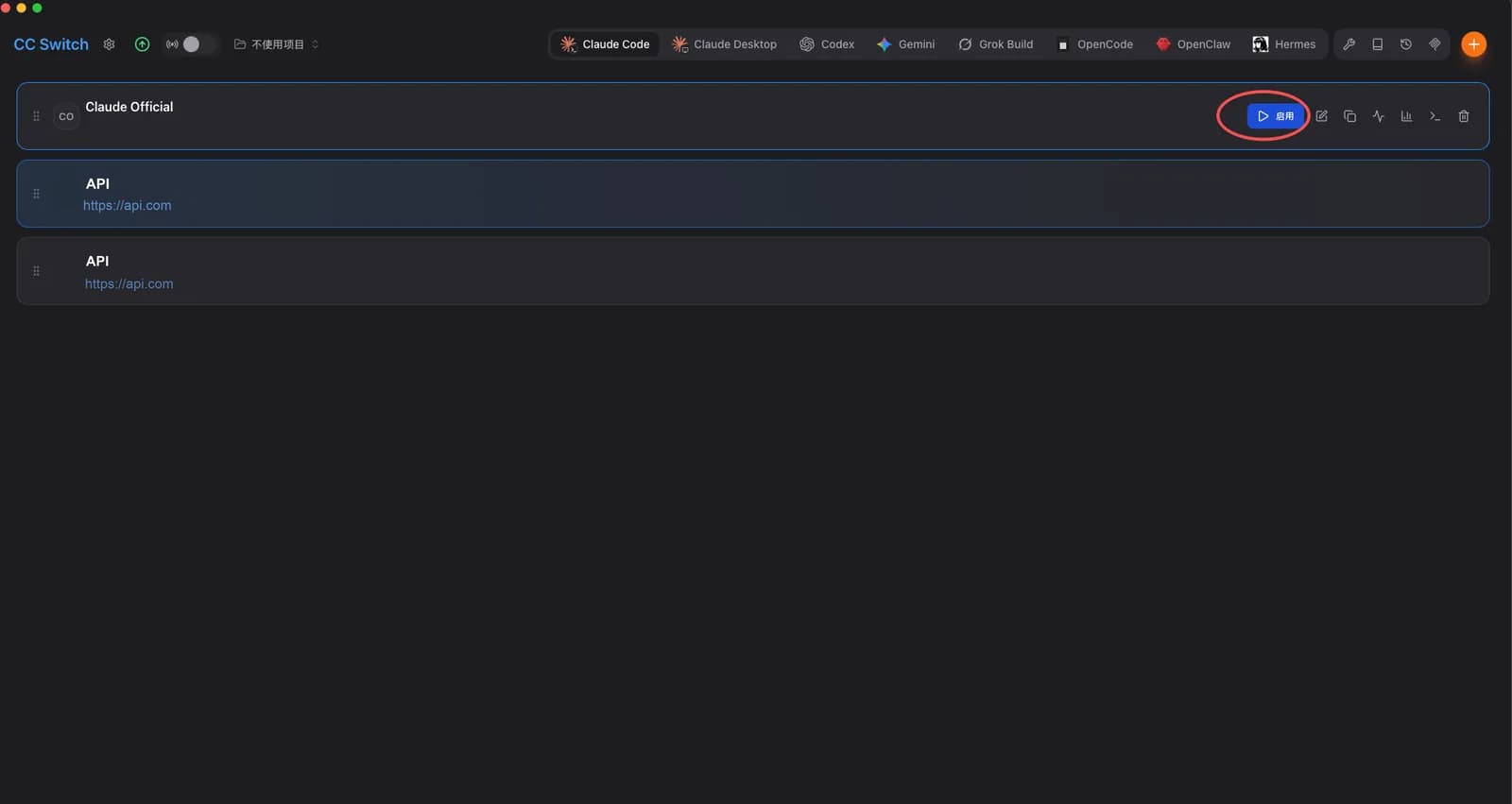
The screenshot was taken on the Claude Code tab. The list and the Enable action are identical on the Codex tab — only the rows differ.
Method C: manual setup
Without CC Switch, put the following into ~/.codex/config.toml, creating the file if it doesn't exist:
model_provider = "gateway"
model = "gpt-5.6-sol"

[model_providers.gateway]
name = "HopsAPI"
base_url = "https://hopsapi.com/v1"
env_key = "AI_GATEWAY_API_KEY"
A few things that are easy to get wrong here:
gatewayis a name you choose, butmodel_provider = "gateway"and[model_providers.gateway]must use the same word — rename one and you must rename the other. Avoidopenai,ollama, andlmstudio; Codex reserves all three.env_keyholds the name of an environment variable, not the key itself. You set the key separately in the next step; it never appears in this file.modeltakes a single id — it's the default model, and the valid ids are in available models. To use another one for a single run (saygpt-5.6-luna), pass--modelat launch; see Pick a model.wire_apiis optional: Codex supports only the Responses protocol, so leaving it out selects it anyway.
On macOS and Linux, one command writes the whole file:
This command replaces ~/.codex/config.toml entirely — any other providers, MCP servers, or
settings already in it are lost. If the file exists, back it up first (cp ~/.codex/config.toml ~/.codex/config.toml.bak), or add the block by hand as shown above.
mkdir -p ~/.codex && cat > ~/.codex/config.toml <<'EOF'
model_provider = "gateway"
model = "gpt-5.6-sol"

[model_providers.gateway]
name = "HopsAPI"
base_url = "https://hopsapi.com/v1"
env_key = "AI_GATEWAY_API_KEY"
EOF
Then export the key:
# macOS / Linux — add to ~/.zshrc or ~/.bashrc to persist
export AI_GATEWAY_API_KEY="sk-YOUR_KEY"
# Windows (PowerShell)
setx AI_GATEWAY_API_KEY "sk-YOUR_KEY"Verify
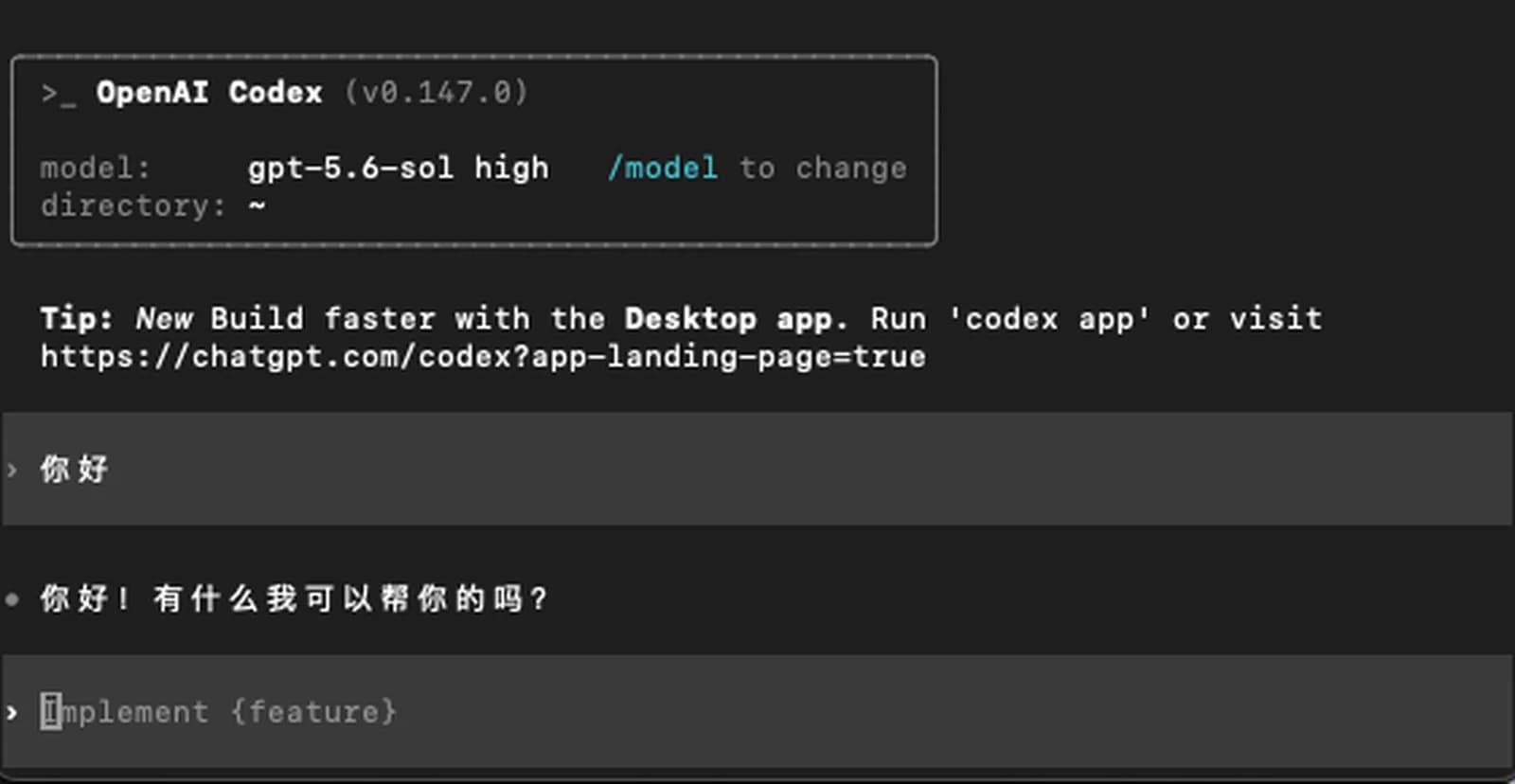
Restart your terminal first — Codex reads its configuration and the environment at launch.
codex "hello"A normal reply means the setup worked.
Pick a model
codex --model gpt-5.6-luna "refactor this function"Codex CLI speaks the OpenAI Responses API (wire_api = "responses"), and not every model supports it. Confirm the model you want is Responses-capable in available models, or the request will fail.
Common adjustments
| Goal | How |
|---|---|
| Change reasoning effort | Add model_reasoning_effort = "high" — accepts minimal, low, medium, high, xhigh |
| Keep several setups | Save each as ~/.codex/<name>.config.toml, then run codex --profile <name> |
| Long replies cut off | Add stream_idle_timeout_ms = 600000 to the provider block (default 300000) |
Troubleshooting
| Symptom | Fix |
|---|---|
404 / unknown endpoint, or empty streamed responses | The model doesn't support the Responses protocol. HopsAPI has no Chat Completions fallback for Codex — pick a Responses-capable model from available models. |
401 / authentication error | The key is unset or invalid. On Method C, check with echo $AI_GATEWAY_API_KEY (echo $env:AI_GATEWAY_API_KEY in PowerShell), then restart the terminal. |
| Config changes have no effect | You didn't restart the terminal, or the settings went into a project-local .codex/config.toml — model_provider / model_providers are read only from the user-level file. |
| Requests still reach OpenAI | model_provider doesn't match the name in [model_providers.…]. |
| Model-not-found error | Check model for typos, stray spaces, or missing quotes, and confirm the id appears in available models. |
| "Open CC Switch" does nothing | CC Switch is missing or too old. Install or upgrade it, then retry. |
| The primary model dropdown is empty in the import dialog | The key is incomplete or invalid — the model list is fetched with it. Copy the key again, or create a new one. |