WorkBuddy
Add HopsAPI to WorkBuddy as a custom model - endpoint, API key, model name, and the advanced options.
WorkBuddy is Tencent's AI agent desktop app for office work, coding, and document tasks. Connect it to HopsAPI and a single API key reaches GPT, Claude, Gemini, DeepSeek, Kimi, and more.
Before you start
- A HopsAPI account and an API key (get one ↗)
- WorkBuddy installed (download ↗)
Configuration
Step 1: Open settings
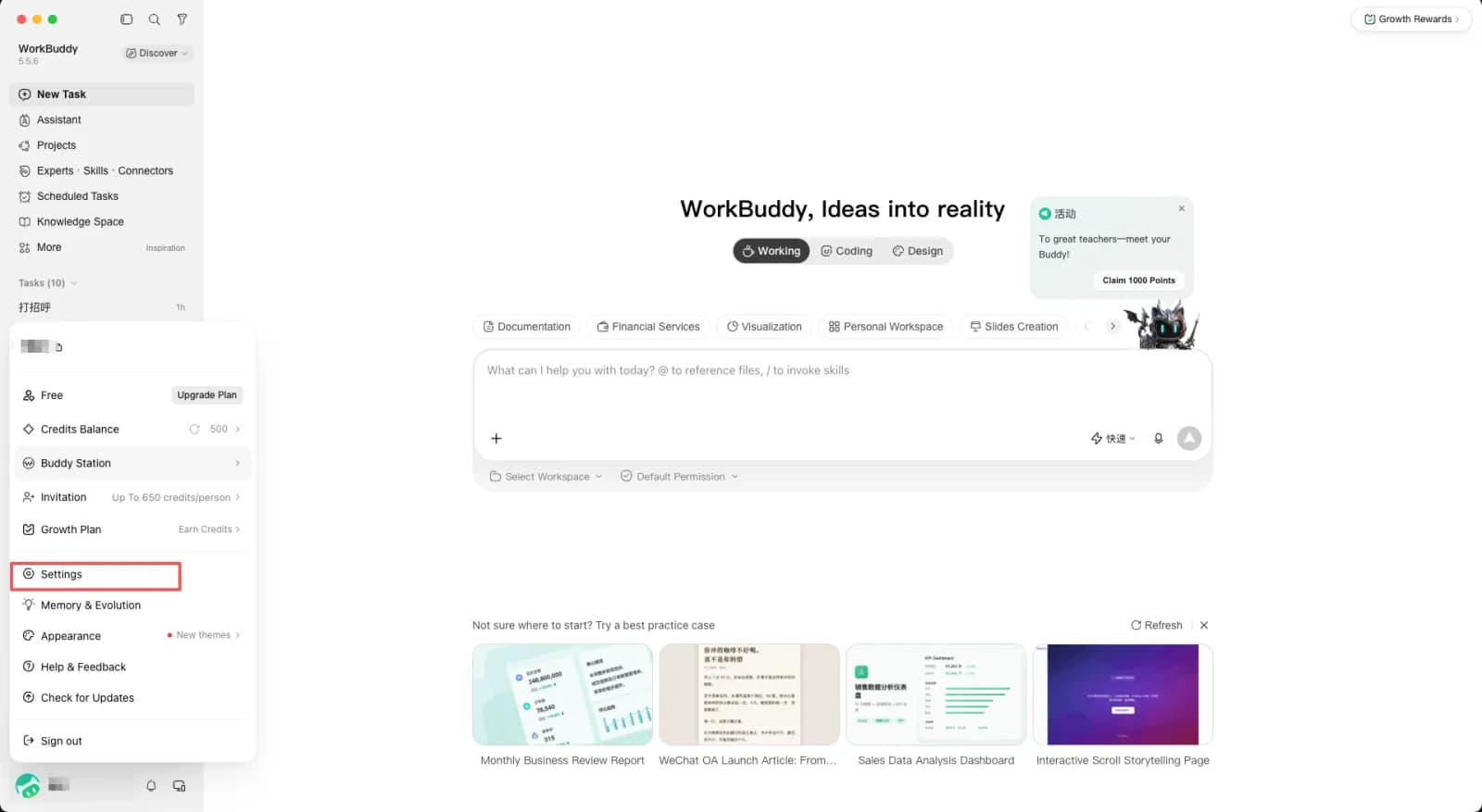
Launch WorkBuddy, click your avatar in the lower-left corner, then click Settings.
Step 2: Go to model configuration
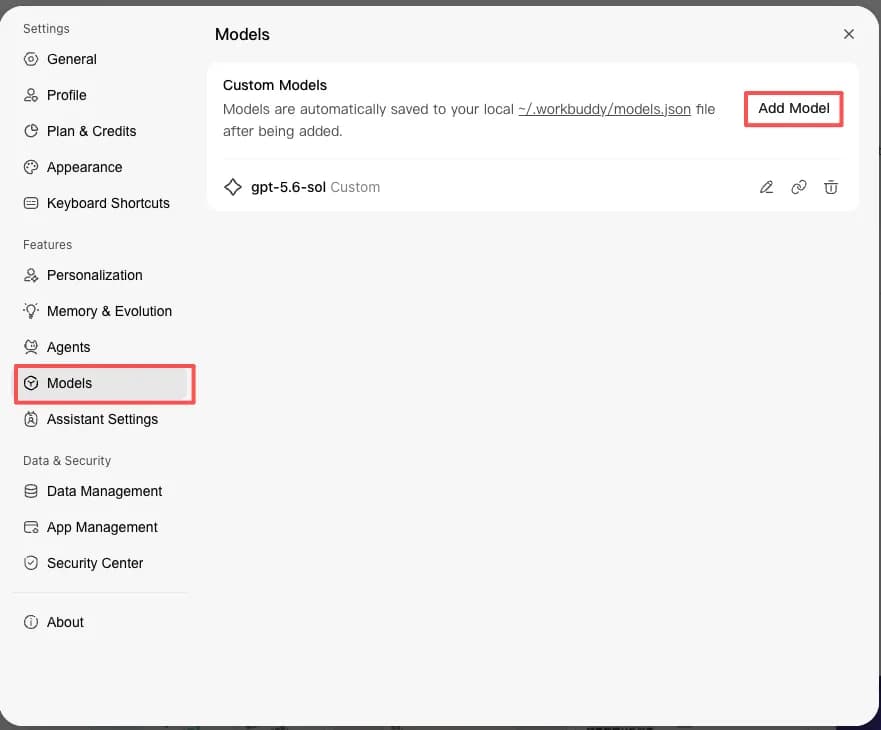
In the settings sidebar click Models, then click Add Model at the top right.
Step 3: Choose the Custom provider
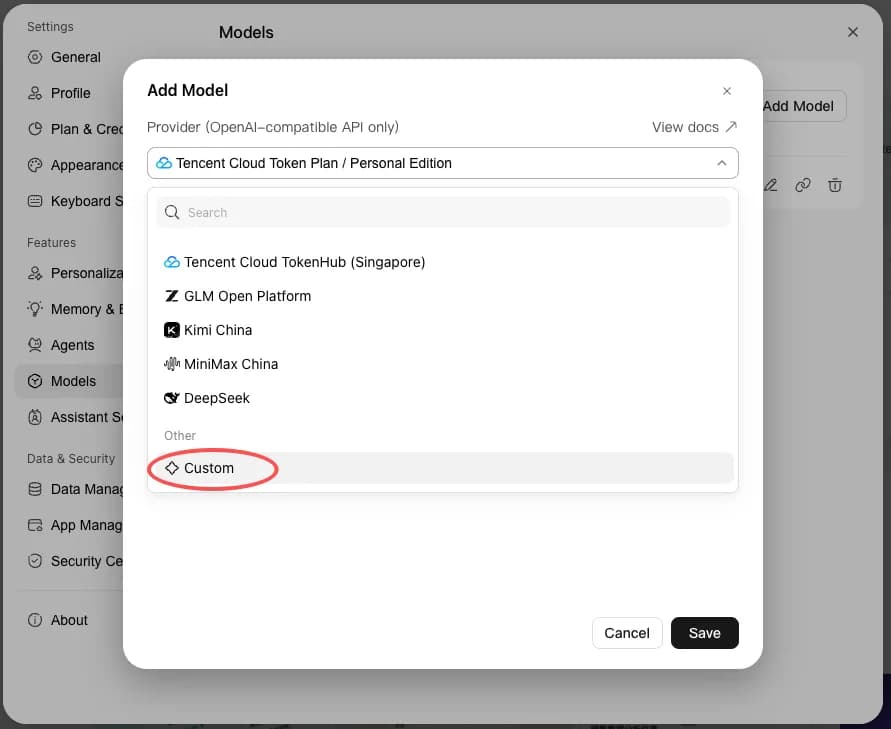
Open the Provider dropdown at the top of the dialog and pick Custom under Other.
Step 4: Fill in the details
| Field | Value |
|---|---|
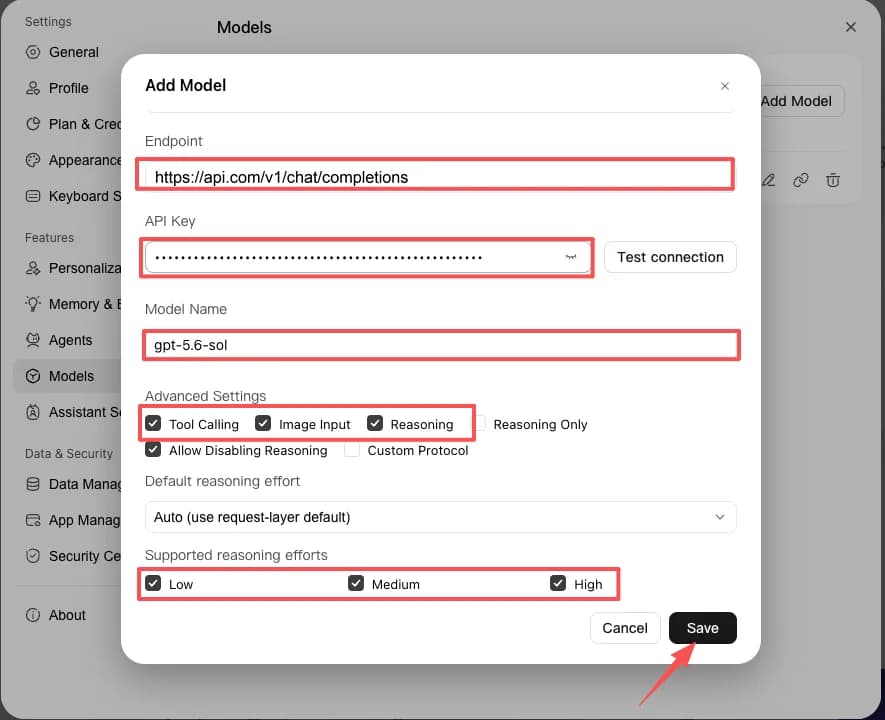
| Endpoint | https://hopsapi.com/v1/chat/completions |
| API Key | Your HopsAPI API key, beginning with sk- |
| Model Name | The model ID you want, such as gpt-5.6-sol |
Enter the full endpoint path including /chat/completions, with no trailing slash. Model IDs
take no channel prefix - send the bare ID exactly as GET /v1/models returns it, and the gateway
routes it through the channel authorized for that key.
Tick the advanced settings that match what the model actually supports:
| Setting | Tick it when |
|---|---|
| Tool Calling | The model supports function calling |
| Image Input | The model is a vision model that accepts images |
| Reasoning | The model supports reasoning |
| Reasoning Only | The model can only run in reasoning mode |
| Allow Disabling Reasoning | The model lets a request turn reasoning off |
| Custom Protocol | Leave unticked - the endpoint is already a full path, so WorkBuddy sends it as given |
Claiming a capability the model does not have makes requests fail rather than degrade - check the model's own page under Chat models.
Leave Default reasoning effort on Auto, and tick the efforts under Supported reasoning efforts that the model actually offers.
Claude models work here too. Enter a Claude model ID such as claude-opus-5 under Model
Name - the gateway provides an OpenAI-compatible path for Claude, so no extra setup is needed.
The screenshot below shows Claude configured with a successful connection test.
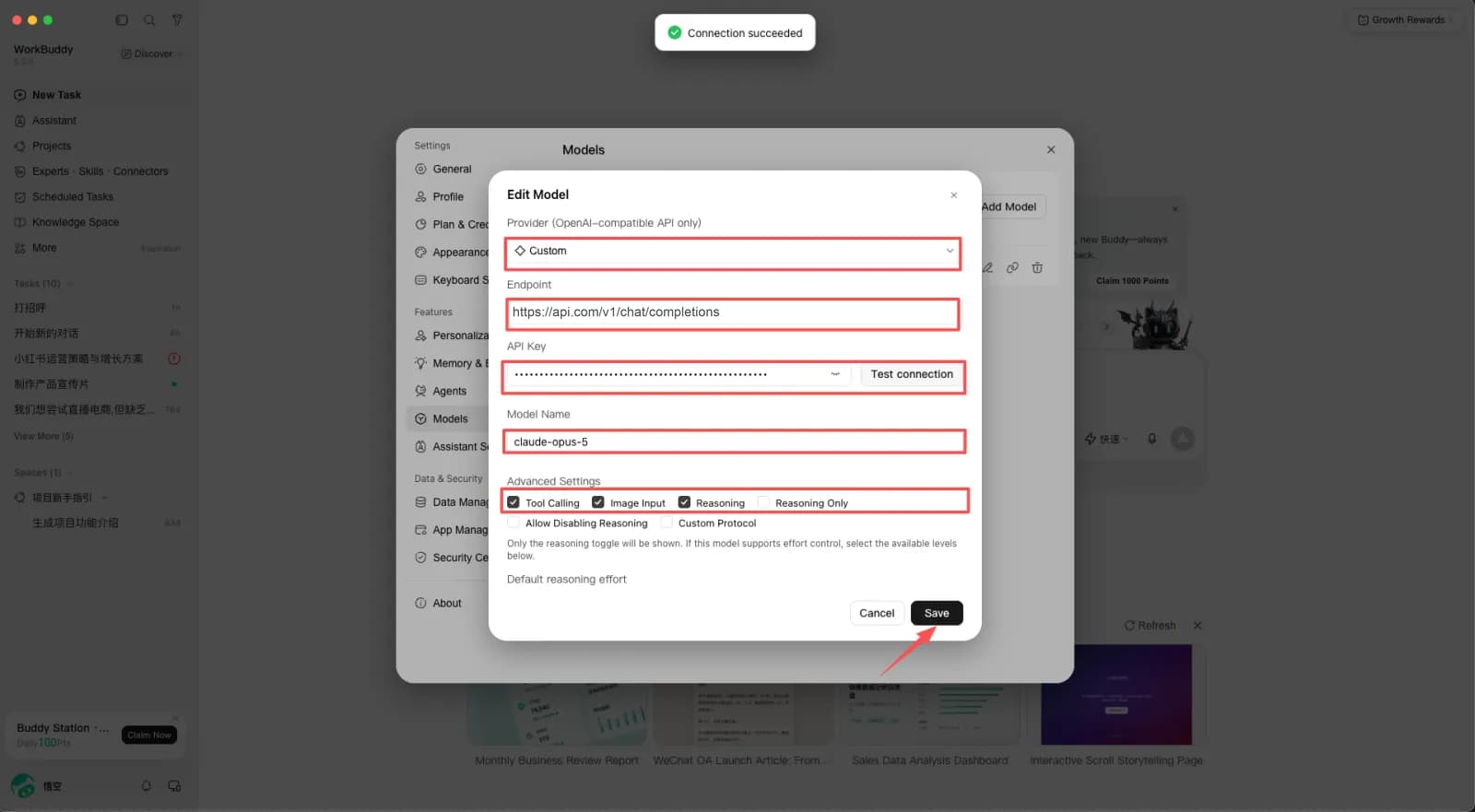
Do not save yet - verify it with Test connection first.
Step 5: Test the connection and save
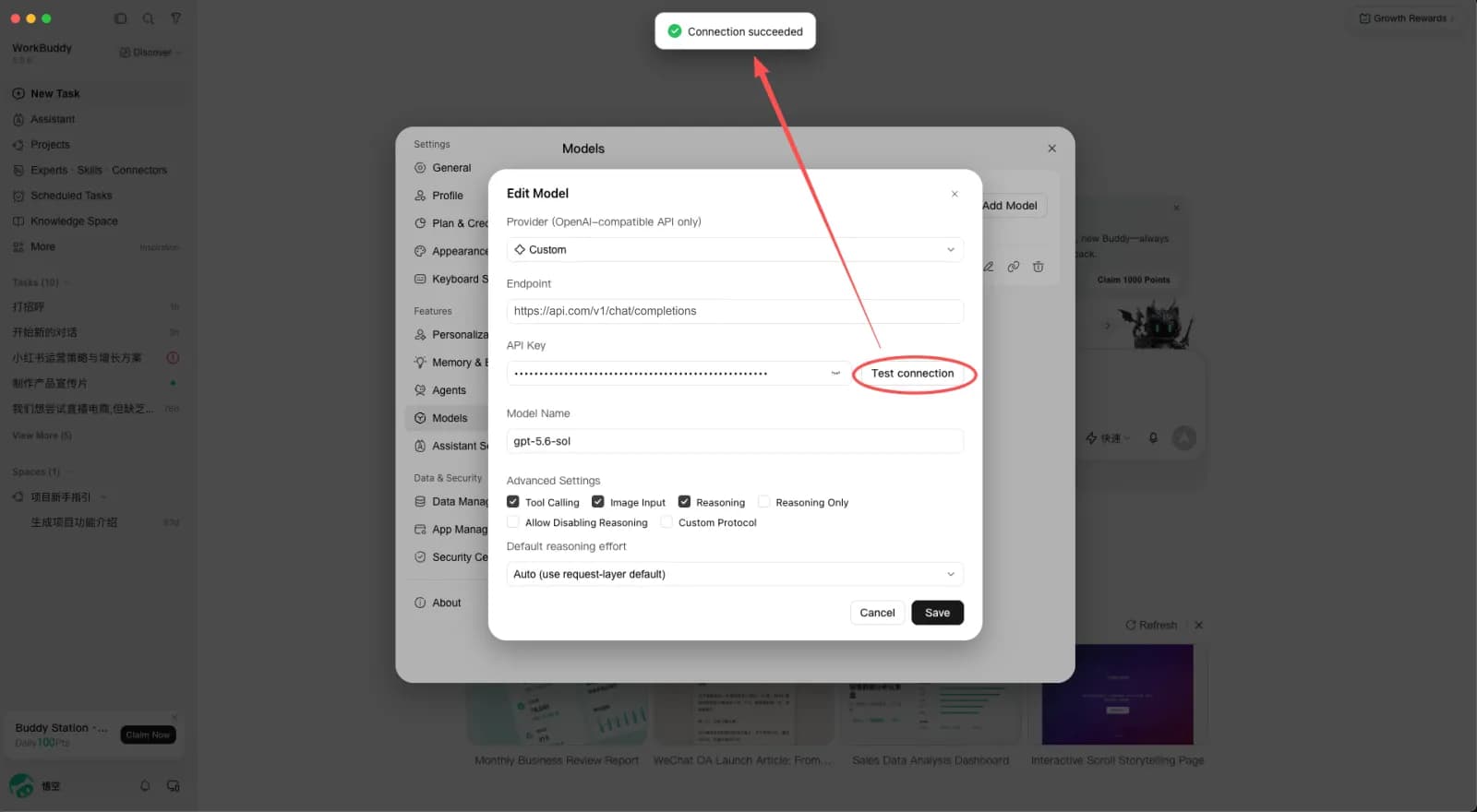
Click Test connection next to the API Key field. Once it reports Connection succeeded, click Save. This catches a wrong endpoint, a whitespace-padded key, or an empty balance right away.
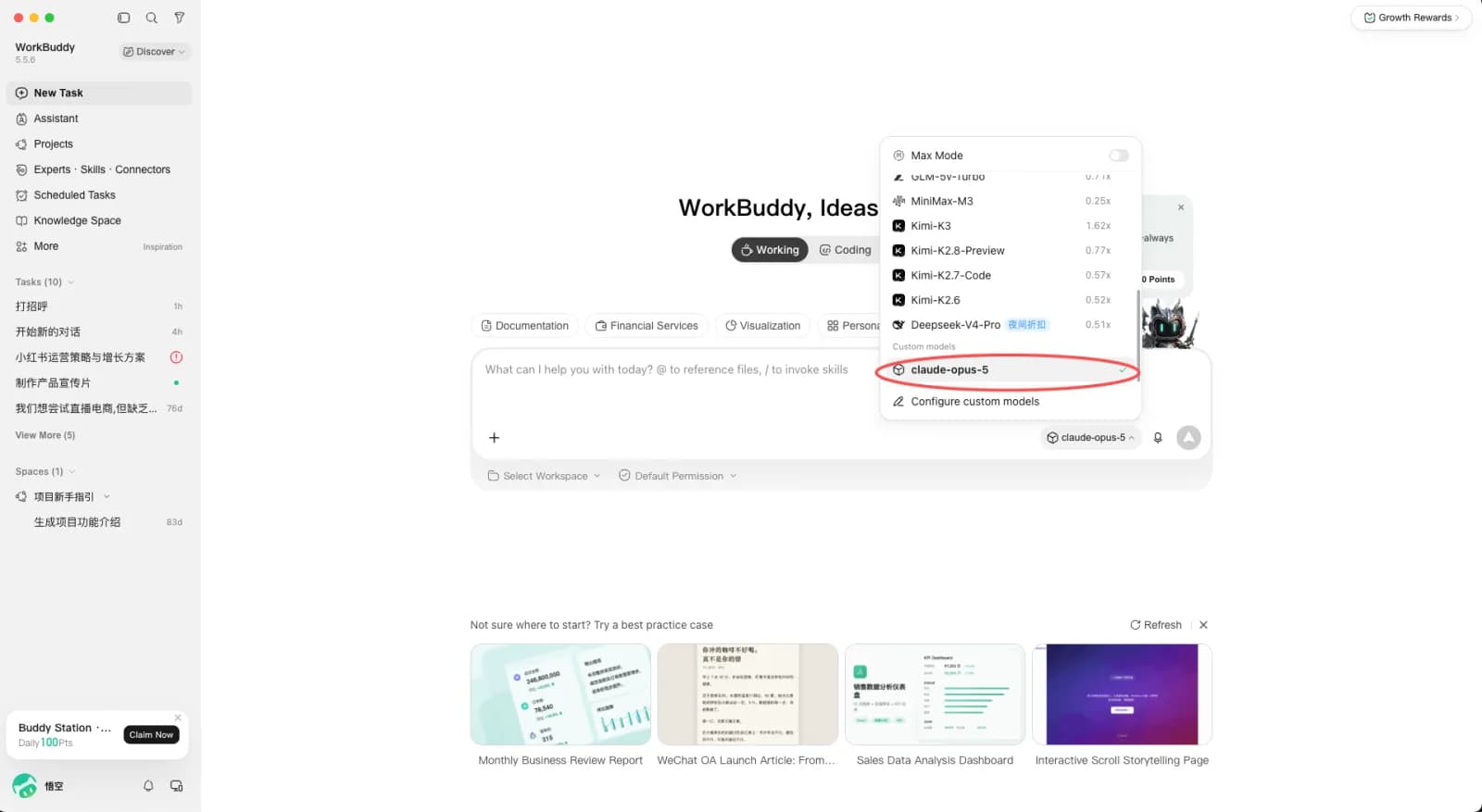
After saving, the model appears in the custom model list.
Step 6: Start a conversation
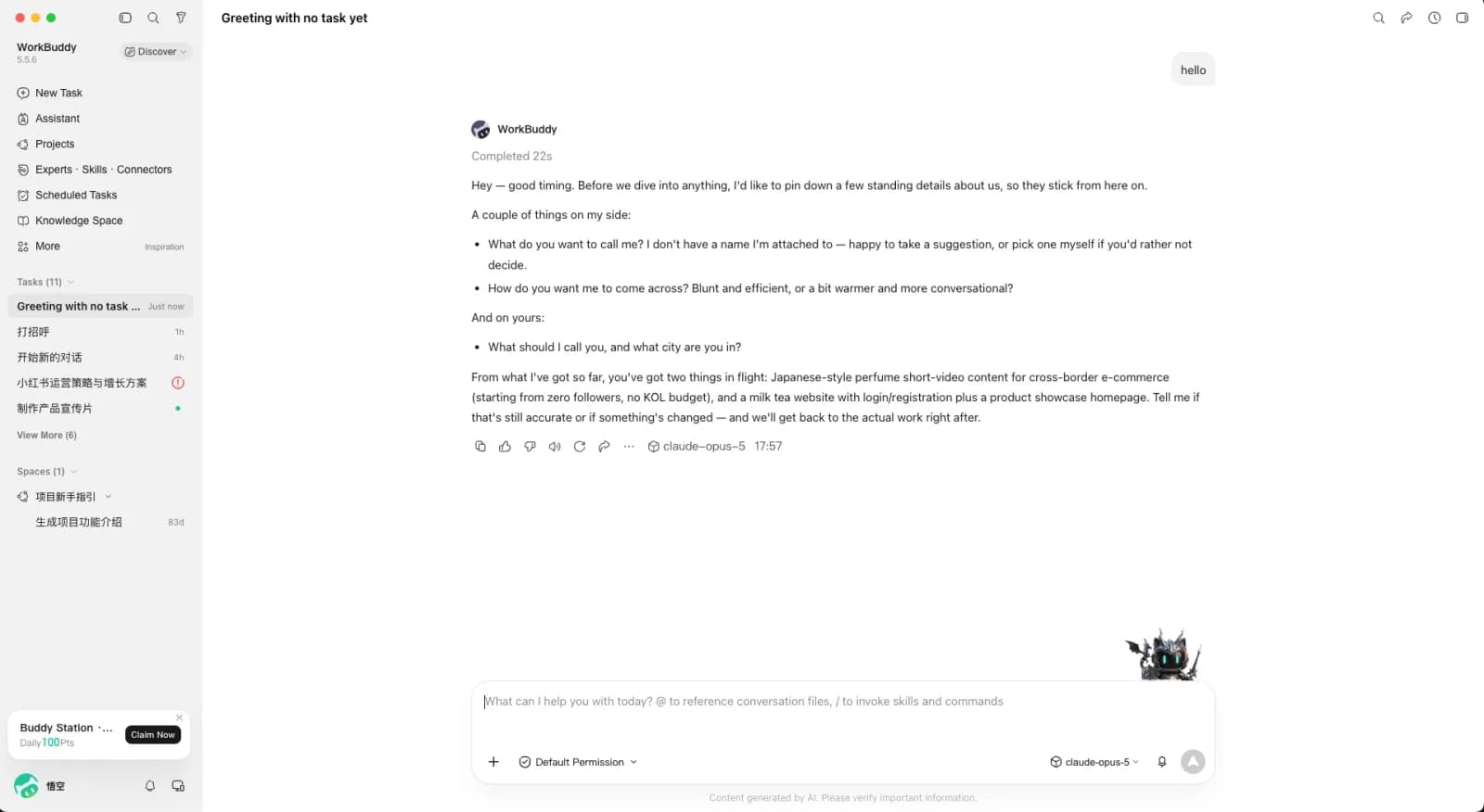
Back on the main screen, open the model picker in the lower right and choose your model under Custom models. You can start chatting right away, and each reply shows the model ID it used.
Recommended models
See List models or the console's Pricing page for the full catalog, then enter the model ID under Model name.
| Model family | Works | Notes |
|---|---|---|
| Chat models (GPT, Claude, Gemini, DeepSeek, Kimi, GLM, Grok) | Yes | Use the model ID returned by GET /v1/models |
| Image and video models | No | Media generation uses the async task API, not chat |
Troubleshooting
Can I use Claude or Gemini models?
Yes. Enter the model ID under Model name - see List models for the full catalog.
The saved model does not appear in the picker
Restart WorkBuddy. New models show up under the Custom models group in the model picker at the bottom of the chat screen.
The request fails or reports an endpoint error
Check that the endpoint is the complete path https://hopsapi.com/v1/chat/completions, and that the key was copied in full from the console's API Keys page with no stray spaces or line breaks.
401 or 402 on every request
401 usually means a wrong, disabled, or whitespace-padded key. 402 means the balance is insufficient or the key reached its spend limit - top up or switch to a key without an exhausted limit. See Errors.