DeepSeek Harness
Point DeepSeek Harness (dsh) at HopsAPI - install, configure the provider, set the API key, and verify.
DeepSeek Harness (command name dsh) is DeepSeek's open-source agent harness, built on an "everything is a plugin" architecture - models, tools, skills, sessions, sandboxes, and the UI are all replaceable plugins. It calls DeepSeek's own API by default; point its model plugin at HopsAPI and the same harness reaches every model in the HopsAPI catalog.
dsh is in developer preview and its maintainers state that breaking changes are expected; field
names may change between versions.
Before you start
- A HopsAPI account and an API key (get one ↗)
- Node.js installed (
dshships through npm)
Configuration
1. Install dsh
The package is @deepseek-ai/dsh, which provides the dsh command.
npm install -g pnpm          # skip if already installed
pnpm add -g @deepseek-ai/dsh
dsh --version
pnpm's global bin directory must be on PATH - pnpm bin -g prints the exact location. During install, pnpm may report Ignored build scripts: node-pty, koffi …; that is safe to ignore, since both ship prebuilt binaries for every platform.
To try it without installing globally:
npx @deepseek-ai/dsh web2. Configure a custom provider
dsh keeps its configuration under $DSH_HOME - ~/.dsh on macOS and Linux, %USERPROFILE%\.dsh on Windows. Use either method below.
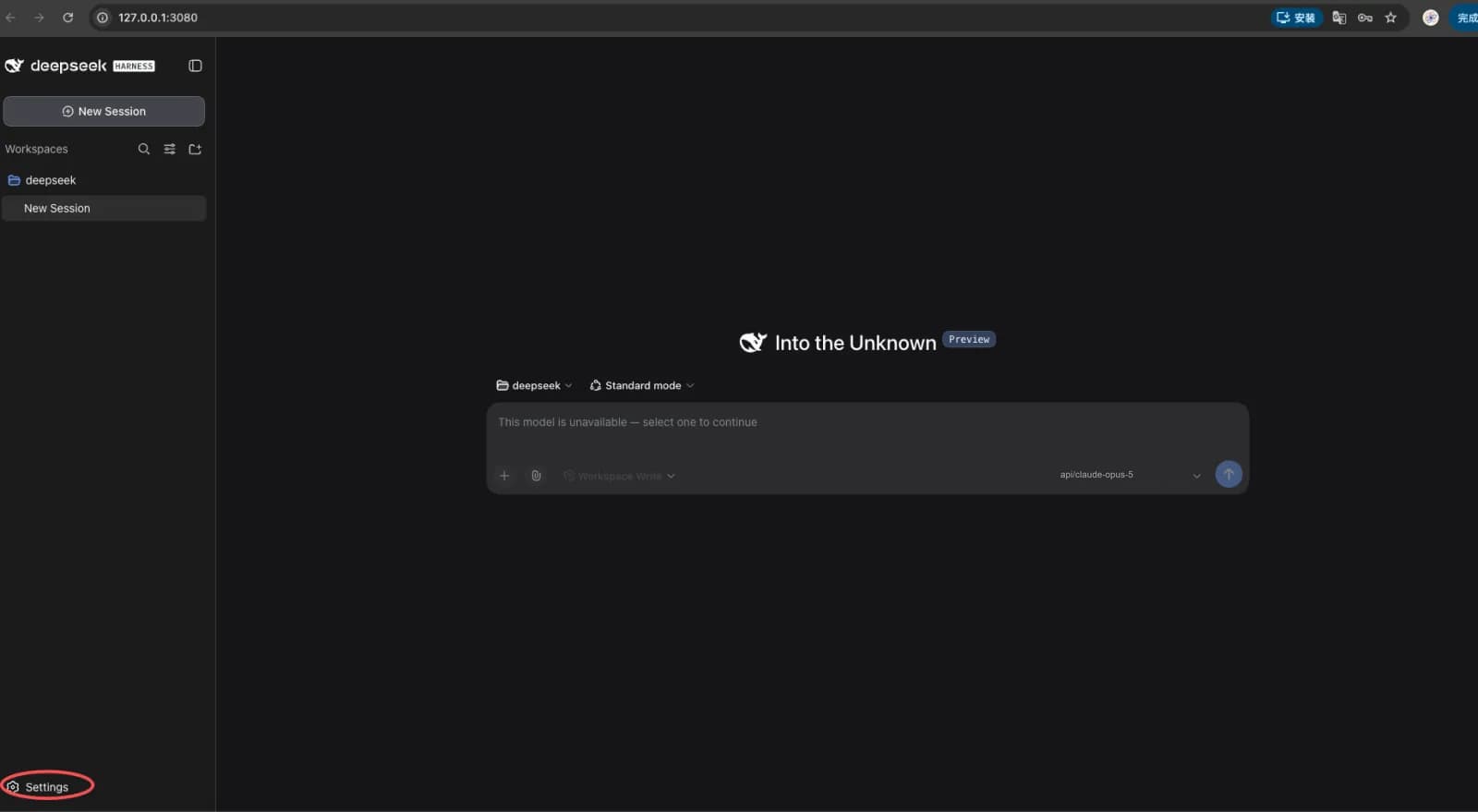
dsh webThe terminal prints a tokenized URL (http://127.0.0.1:3080 by default) and opens the browser. Click Settings in the lower left.
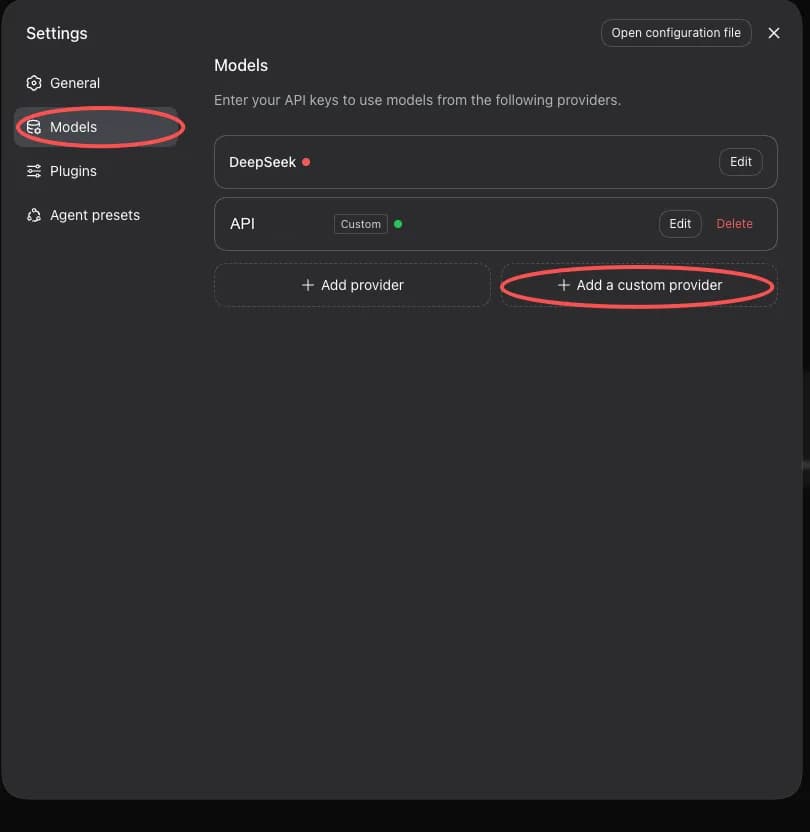
Switch to Models on the left. The built-in DeepSeek (deepseek-official) entry talks to DeepSeek directly, so routing through HopsAPI needs a new custom provider - click Add a custom provider.
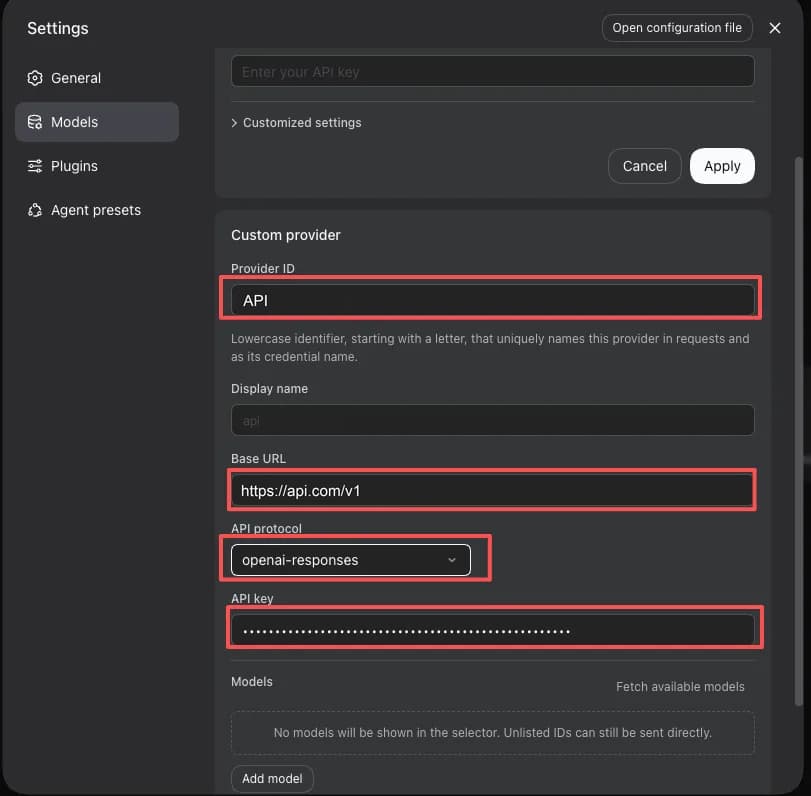
Fill in the form:
| Field | Value |
|---|---|
| Provider ID | A lowercase identifier, for example gateway-codex |
| Display name | Leave blank to follow the Provider ID |
| Base URL | https://hopsapi.com/v1 |
| API protocol | openai-responses or openai-completions - see below |
| API key | Your HopsAPI API key |
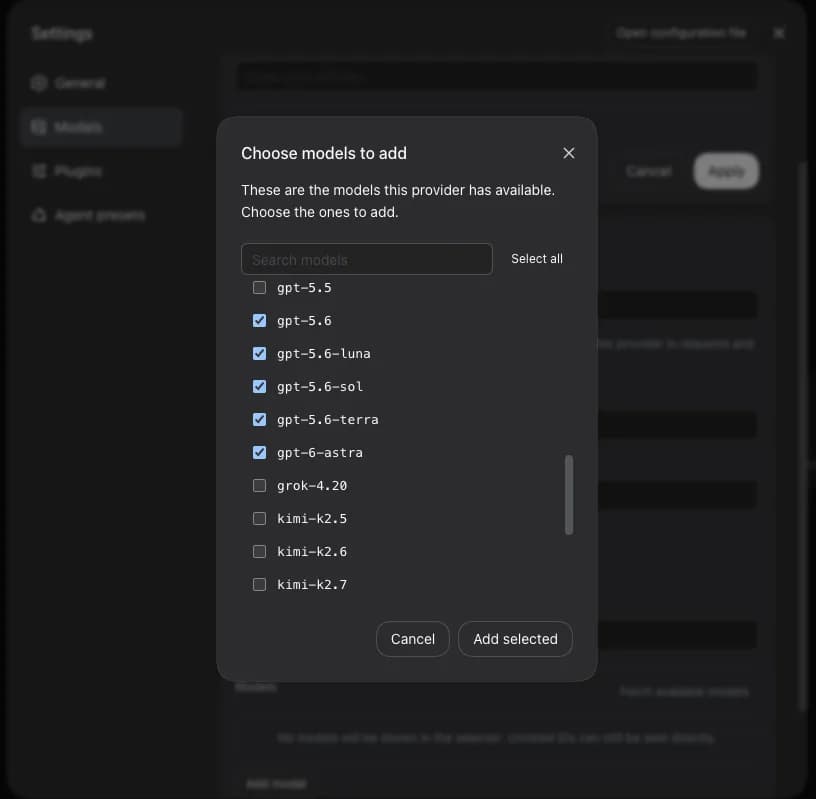
Click Fetch available models - dsh calls GET /v1/models to pull the models this key is authorized for. Tick the ones you want and click Add selected.
With the model list populated, click Create provider.
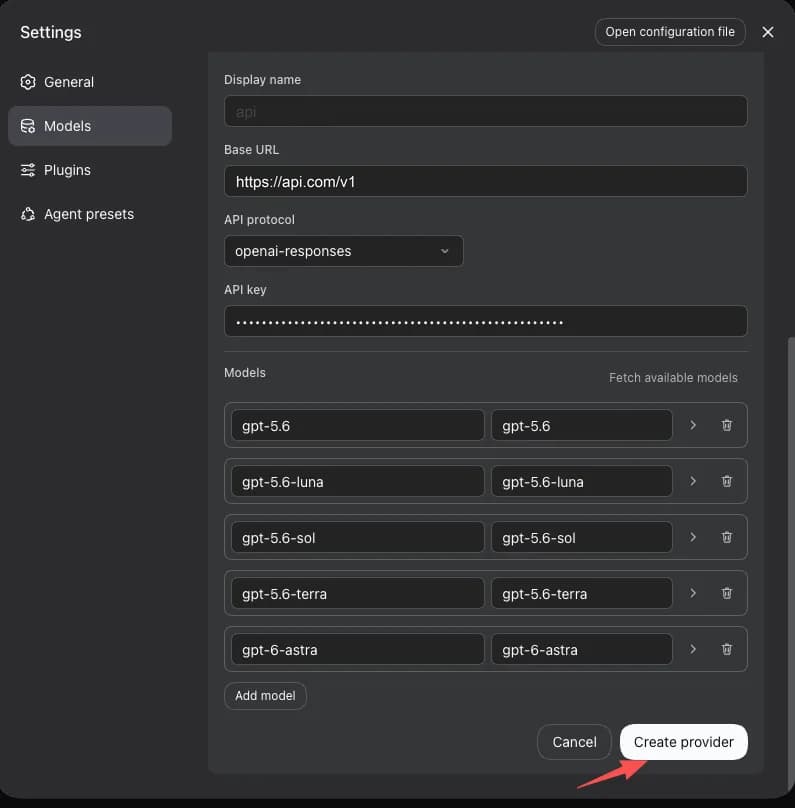
Pick the API protocol to match the models you want. The screenshots use openai-responses
with GPT-family models, which do expose a Responses endpoint. Only some HopsAPI models support
Responses (check responses_endpoint in GET /v1/models); for the rest, use
openai-completions. Claude has its own native protocol - see Add a second provider for
Claude. See Protocols & endpoints.
A provider maps to exactly one protocol, so create several if you need to - for example
gateway-codex on openai-responses for GPT models and gateway-claude on anthropic-messages
for Claude, then switch between their groups in the model picker.
The API key is written to $DSH_HOME/.credentials.yaml (readable only by your user) and the provider config to $DSH_HOME/settings.yaml. Both take effect immediately - no restart needed.
For model IDs, use the bare ID returned by GET /v1/models (such as gpt-5.6-sol or claude-opus-5) with no channel prefix - the gateway routes it through the channel authorized for that key. Leaving the model list empty is fine too: the picker then shows nothing, but unlisted IDs can still be sent directly. See List models.
3. Set the API key
apiKeyEnv names a credential. dsh resolves it in this order: environment variables at launch, $DSH_HOME/.credentials.yaml, a project-level .env, then a home-directory .env. If you configured it through the Web UI, the key is already in the credentials file and you can skip this step.
Add to ~/.zshrc:
export AI_GATEWAY_API_KEY=sk-YOUR_KEY4. Verify
dsh --profile headless "Reply with exactly one word: ready. Do not call any tools."If it prints ready, the model layer is reaching HopsAPI.
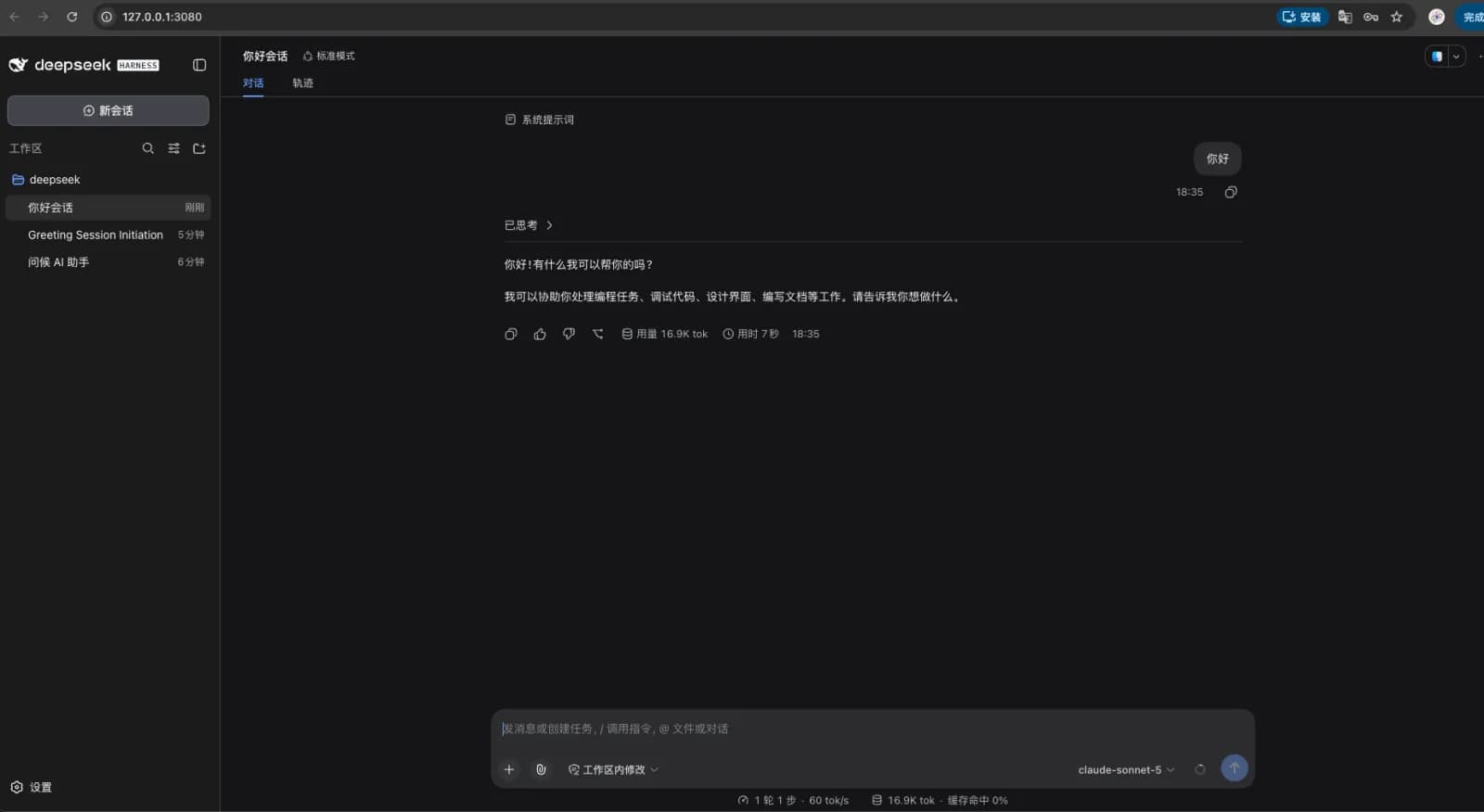
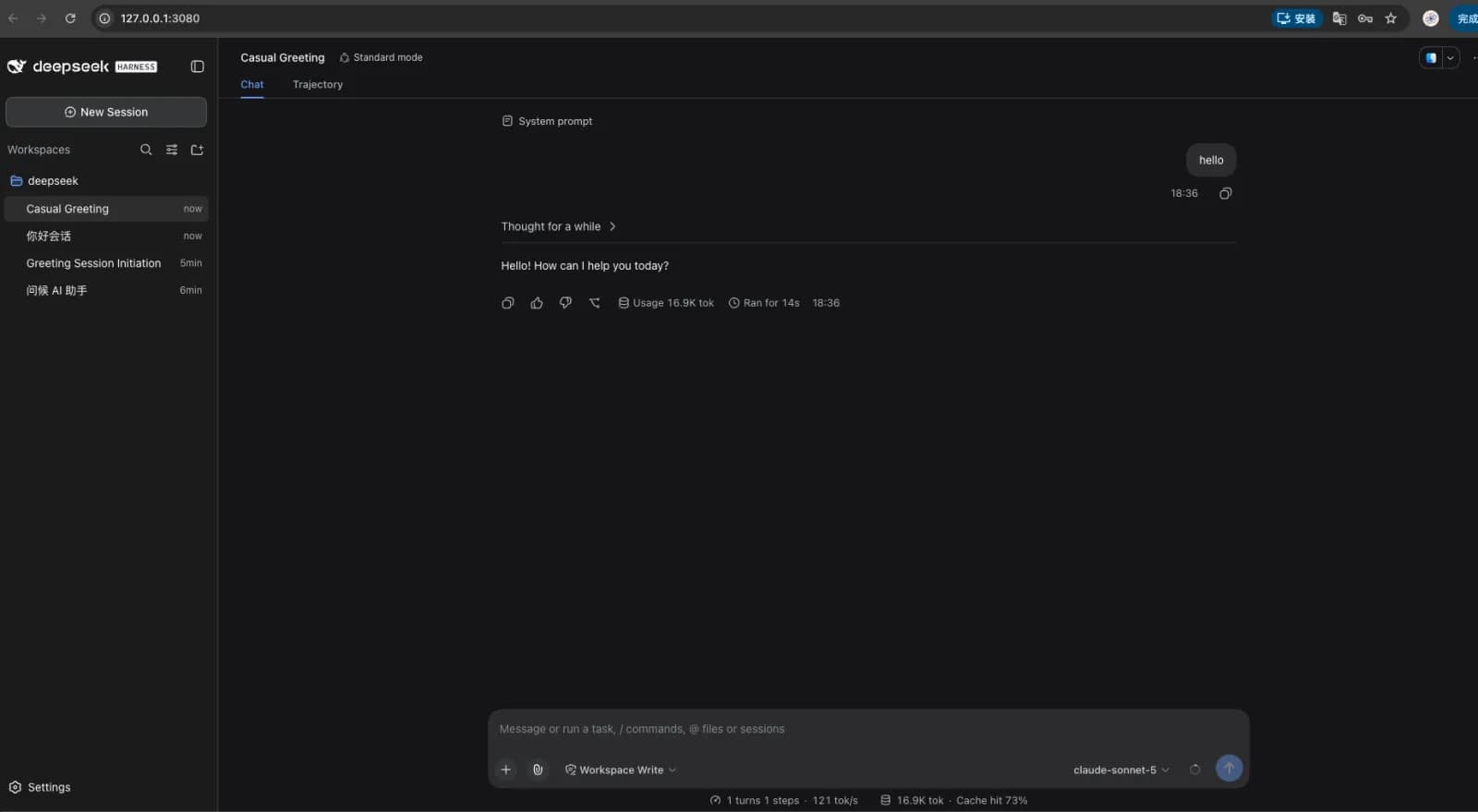
In the web interface, the model picker in the lower right of the composer gains a group for your provider. Pick one of its models and start chatting.
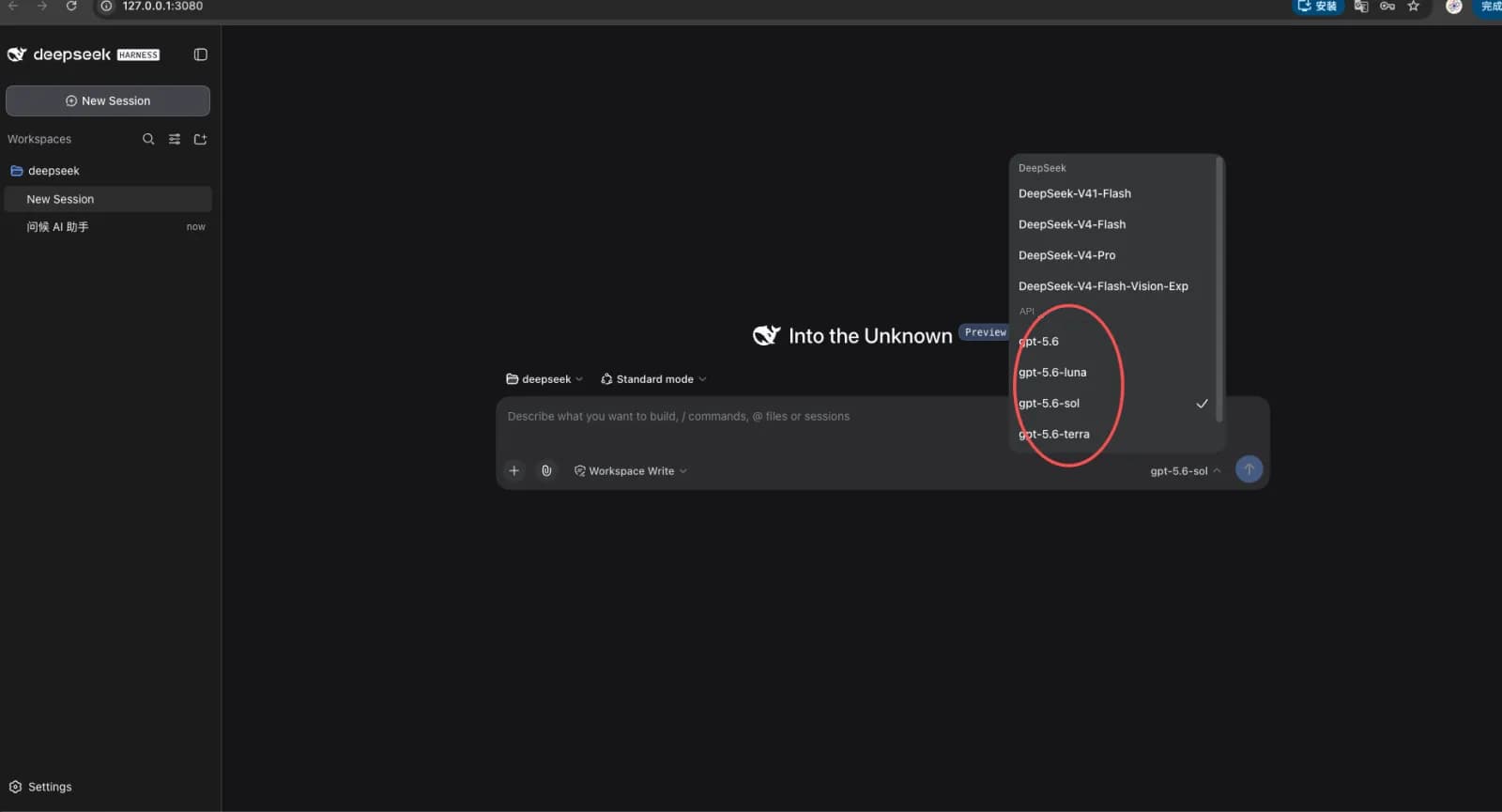
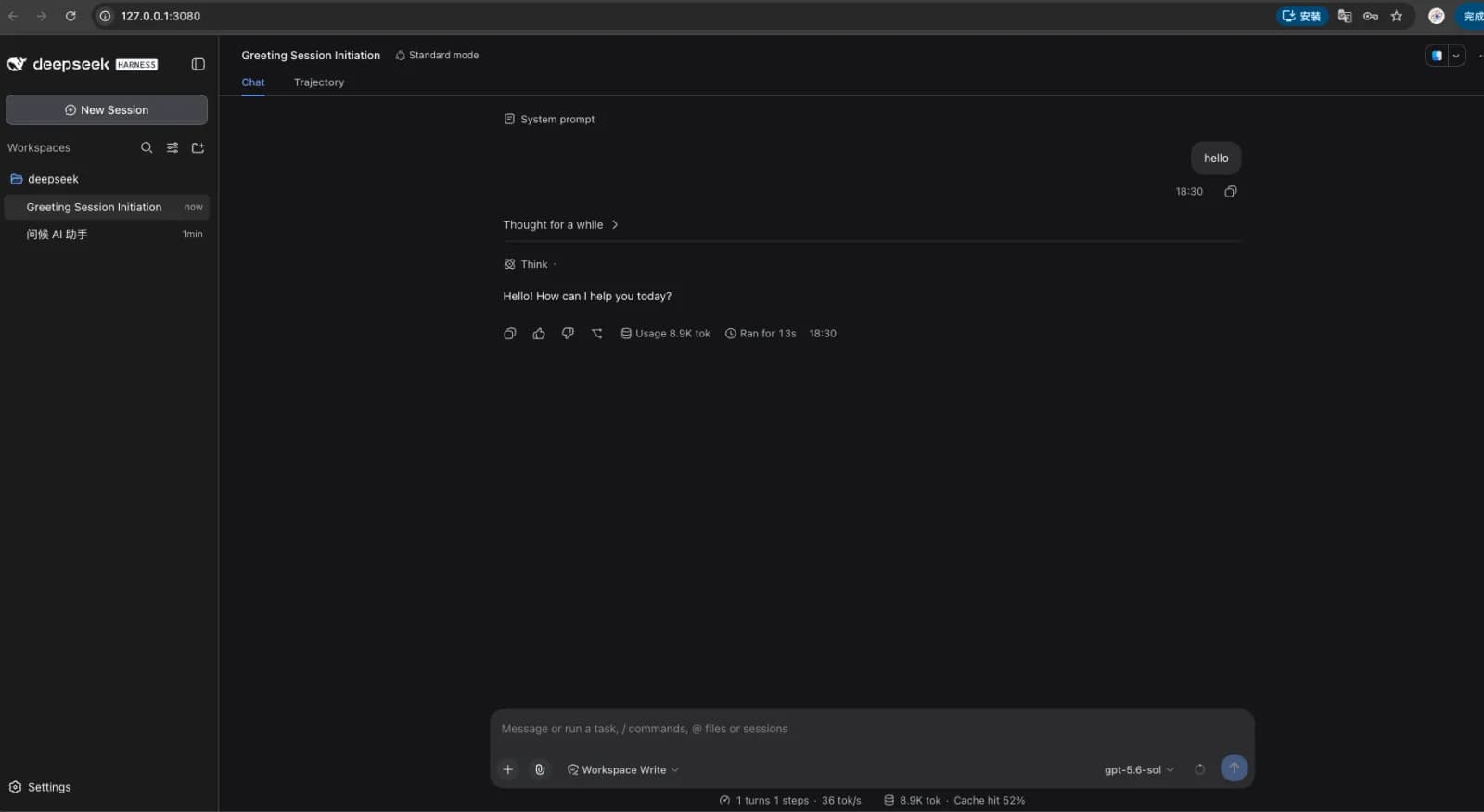
For day-to-day use, launch the web UI with dsh web, or run a single task and exit with dsh --profile headless "run the tests".
Add a second provider for Claude
On HopsAPI, Claude speaks the native Anthropic protocol, which is a different thing from the OpenAI protocol used above. A dsh provider binds to exactly one protocol, so just create a second custom provider - both can share the same API key.
| Field | Value |
|---|---|
| Provider ID | For example gateway-claude |
| Base URL | https://hopsapi.com |
| API protocol | anthropic-messages |
| API key | The same HopsAPI API key |
This Base URL has no /v1. The native Anthropic endpoint is https://hopsapi.com, unlike the
https://hopsapi.com/v1 used for the OpenAI protocol - getting this wrong breaks the connection. See base
URLs.
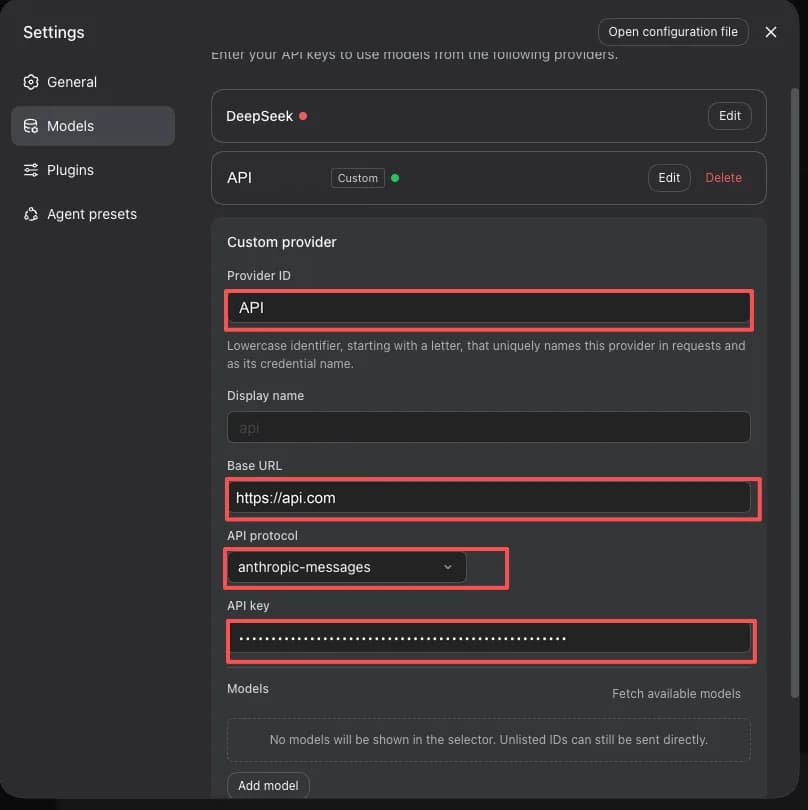
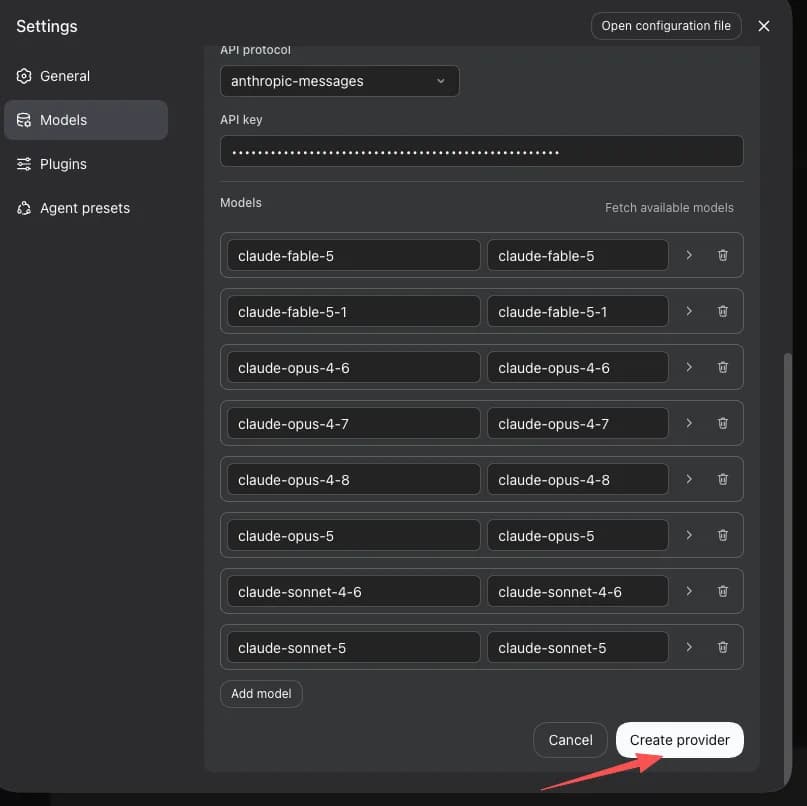
Click Fetch available models, tick the Claude models, then click Add selected.
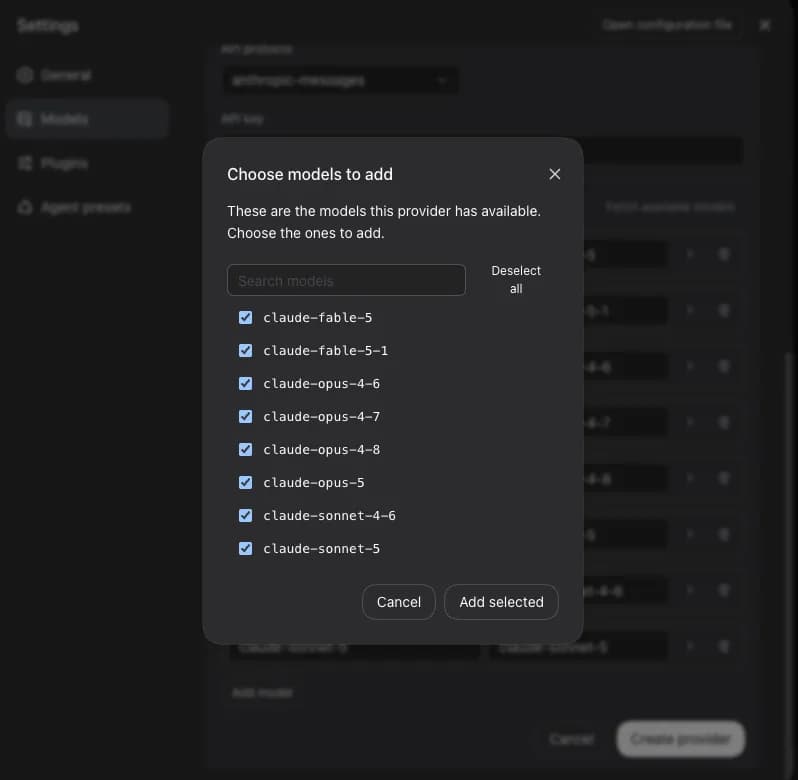
With the model list populated, click Create provider.
Both groups then appear in the model picker, ready to switch between.
Platform differences
The configuration itself is identical on all three platforms; only paths and the way you persist environment variables differ.
| macOS | Linux | Windows | |
|---|---|---|---|
Config root $DSH_HOME | ~/.dsh | ~/.dsh | %USERPROFILE%\.dsh |
| API key persistence | ~/.zshrc | ~/.bashrc | setx |
| Shell tool sandbox | Bash | Bash | PowerShell (Bash sandbox disabled) |
Troubleshooting
TIMEOUT: Request timed out.
dsh is a Node application and does not read http_proxy / all_proxy, so a working system proxy does not mean dsh can connect. Confirm that https://hopsapi.com is reachable directly from the environment running dsh.
MISSING_CREDENTIAL
The credential named by apiKeyEnv resolved to nothing. Check that the environment variable is set in the same terminal that launched dsh, or that the key is stored in $DSH_HOME/.credentials.yaml.
The other cause is picking the wrong model: the built-in deepseek-official models stay listed in the picker even with no key configured, and their names look much like your custom route's.
Empty reply with no error
api is set to openai-responses but the model has no Responses endpoint. Switch the provider's api to openai-completions.
INVALID_REQUEST / 400 endpoint_not_supported
The payload says does not support the /v1/responses endpoint. Again, switch api to openai-completions.
401 or 402
401 usually means a wrong, disabled, or whitespace-padded key. 402 means the balance is insufficient or the key reached its spend limit. See Errors.
Plugin fails to load, or a duplicate route is reported
The same route name was registered twice. Check whether both $DSH_HOME/cordis.patch.yml and settings.yaml define the same provider.
Advanced: the patch layer
settings.yaml holds runtime user settings and applies from the next request onward. To change plugin assembly itself - replacing or disabling a plugin - use the patch layer at $DSH_HOME/cordis.patch.yml:
- id: llm-pi-ai
  config:
    providers:
      gateway-codex:
        apiKeyEnv: AI_GATEWAY_API_KEY
        api: openai-responses
        baseURL: https://hopsapi.com/v1
- id: agent-default-model
  config:
    provider: gateway-codex
    model: gpt-5.6-sol
dsh web --dump-config prints the assembled plugin tree so you can confirm the configuration took effect.
Recommended models
See List models or the console's Pricing page for the full catalog. Since dsh is agent-oriented, prefer chat models with tool-calling support.