Configure a model provider
Point Claude Code at HopsAPI's native Anthropic Messages endpoint. Import it into CC Switch from the console in one click, add it in CC Switch by hand, or configure it yourself.
Claude Code talks to Anthropic by default. Switching it to HopsAPI takes two values:
| Setting | Value |
|---|---|
| Base URL | https://hopsapi.com — bare domain, no /v1, no trailing slash |
| Key | An sk-... key from the console; see Create an API key |
If you already know where those go, that's the whole story. Otherwise pick one of the three methods below — they all end in the same place:
| Method | Best for | CC Switch required |
|---|---|---|
| Method A: one-click import from the console (recommended) | Almost everyone. The console fills in the URL and models; you paste the key once | Yes |
| Method B: add it in CC Switch by hand | Checking every field yourself, or juggling several providers | Yes |
| Method C: manual setup | No extra software, or a headless environment like a server or CI | No |
Before you start
Create an API key
Open the console's API Keys page (1) and click + Create API Key at the top right (2). For the full flow, including model selection and spend limits, see Create an API key.
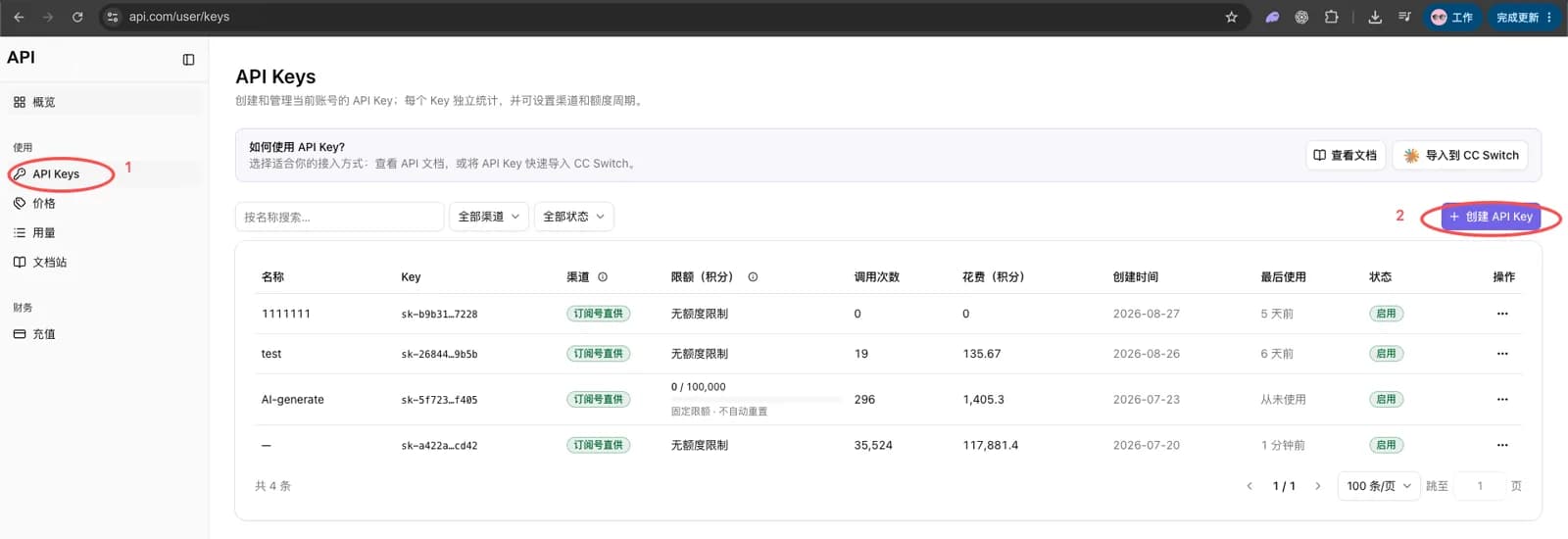
The full key is shown only once, right after you create it — close the dialog and it's gone
for good (the list keeps a mask like sk-b9b31…7228). Copy it there and then, and store it
somewhere safe. A lost key can only be replaced, not recovered.
Install CC Switch
Methods A and B both land the configuration through CC Switch, an open-source provider manager that handles the whole setup through a UI, with no JSON or environment variable to edit by hand. Skip this step if you're going with Method C.
Requires macOS 12+, Windows 10+, Ubuntu 22.04+ / Debian 11+ / Fedora 34+.
Method A: one-click import from the console
The console builds a complete HopsAPI provider configuration and hands it to CC Switch. The request URL, configuration name, and models all arrive filled in — you only paste the key.
Step 1: Generate the import
Back on the API Keys page, click Import to CC Switch on the right of the "How do I use an API key?" card, then:
- Set Application to Claude.
- Paste the key you just copied into API Key (boxed in red). The request URL
https://hopsapi.comand the configuration nameHopsAPIare already filled in — leave them alone. - Once the key registers, the model dropdowns below populate with the models your account can use. The defaults are fine; the primary model and the Haiku / Sonnet / Opus tiers can each be changed if you want.
- Leave Enable after import on so the provider becomes active as soon as it lands.
- Click Open CC Switch at the bottom right (circled in red).
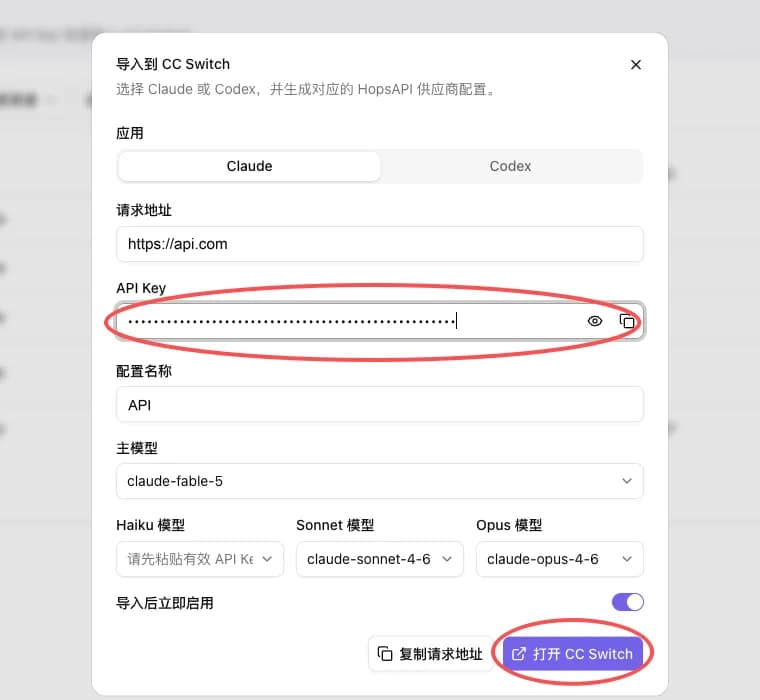
The model names in the screenshot are only an example — what the dropdowns actually list comes from your account. The full catalogue is in available models.
Step 2: Confirm the import in CC Switch
Your browser launches CC Switch, which opens a confirmation dialog. Check that the application type reads Claude, the API endpoint is https://hopsapi.com, and the masked key matches, then click Import.
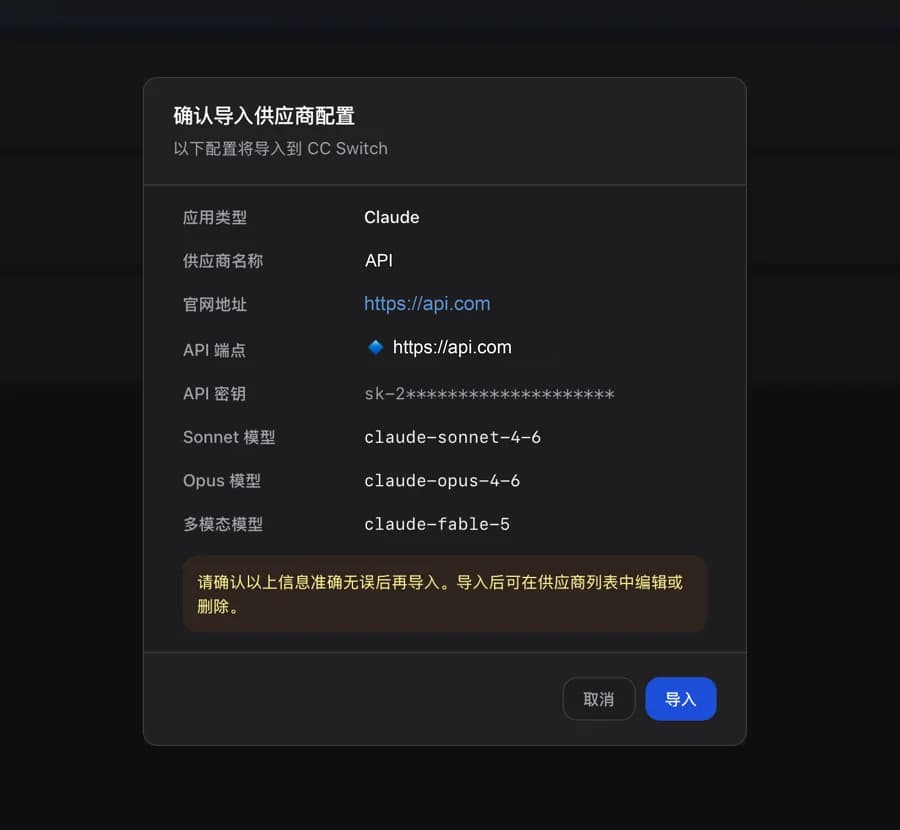
The provider now sits in the CC Switch list, editable or removable at any time. Skip ahead to Verify.
If Open CC Switch does nothing, CC Switch is usually either missing or too old — one-click import needs a recent build. Install or upgrade it via Install CC Switch and try again. Failing that, switch to Method B; the Copy request URL button in the dialog gives you the URL to carry over.
Method B: add it in CC Switch by hand
With CC Switch installed, you can also fill in every field yourself.
Step 1: Add a provider
Open CC Switch, select Claude Code at the top (1), then click the + button at the top right (2).
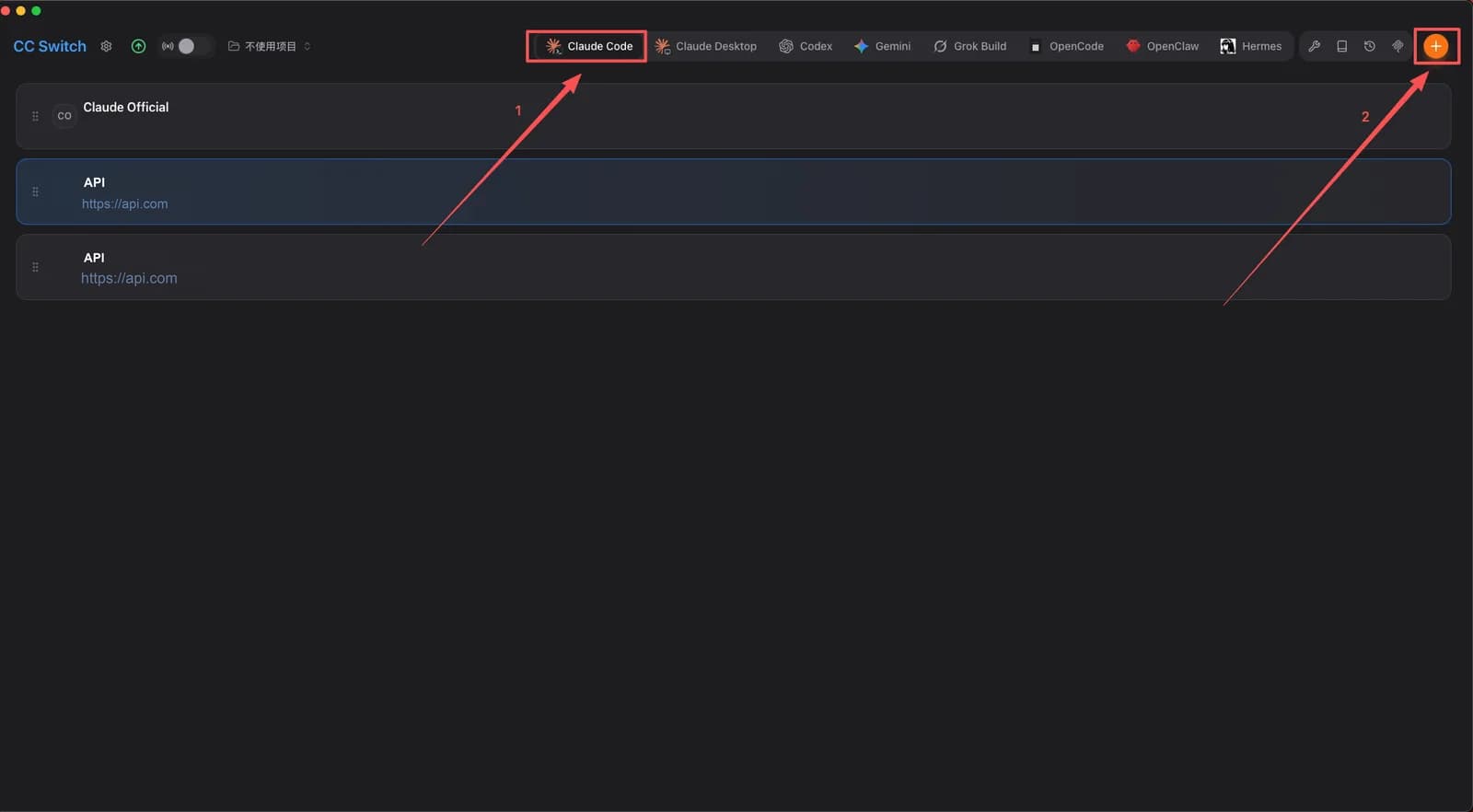
Step 2: Fill in the configuration
Fill in the red-boxed fields below, leave everything else at its default, and click + Add at the bottom right.
| Field | Value | Notes |
|---|---|---|
| Provider name | HopsAPI-Claude | Anything you like, just make it recognizable |
| Website | https://hopsapi.com | The provider's website |
| API Key | Your HopsAPI key (sk-YOUR_KEY) | From the console's API Keys page |
| Request URL | https://hopsapi.com | Bare domain, no /v1, no trailing slash |
| API format | Anthropic Messages (native) | Under Advanced, leave as is |
| Auth field | ANTHROPIC_AUTH_TOKEN (default) | Leave as is |
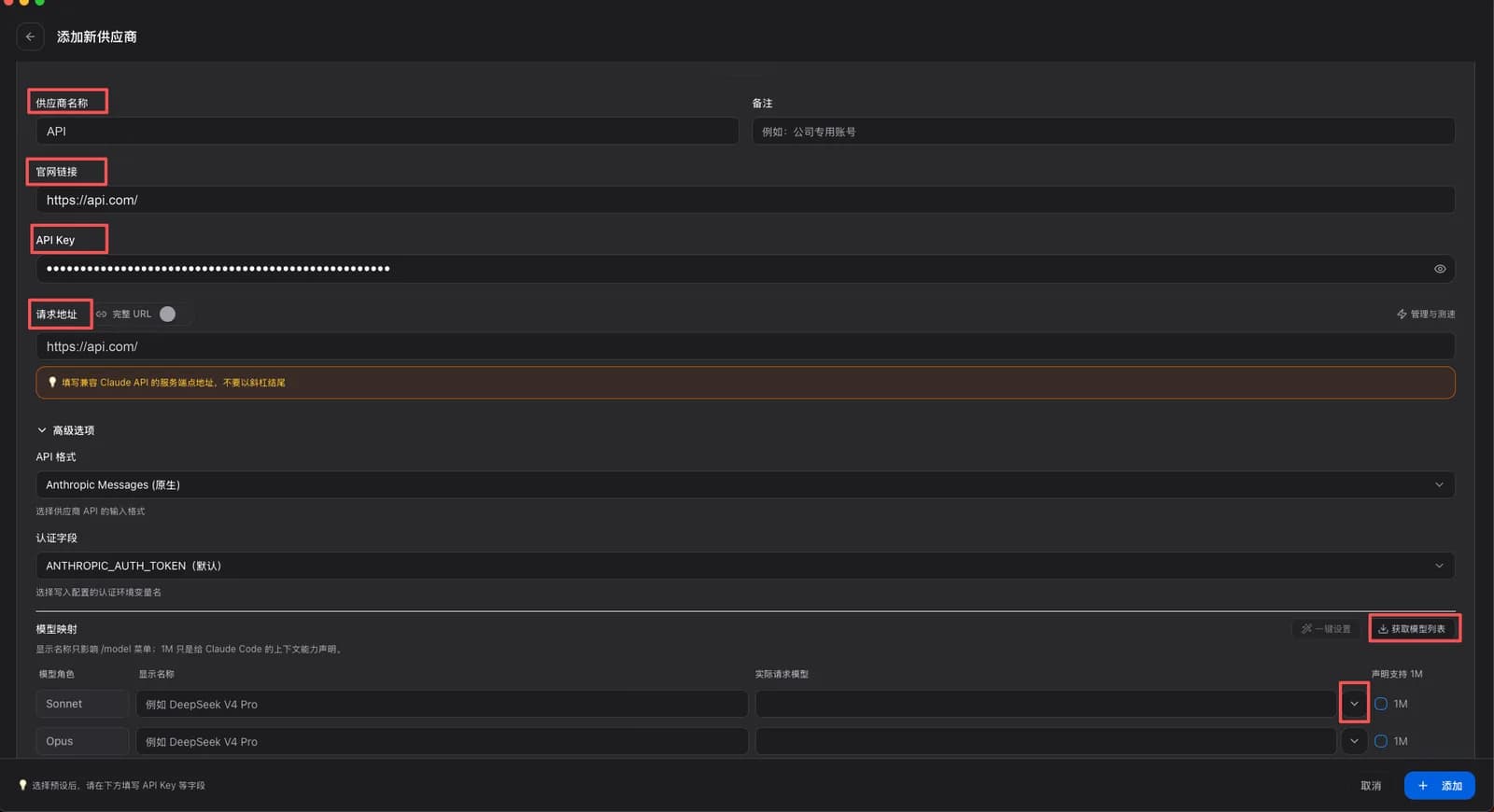
Leave model mapping empty — HopsAPI serves claude-opus-5, claude-sonnet-5, and
claude-fable-5 under the names Claude Code already expects, so there's nothing to remap. If you
do want a different model, click Fetch model list and pick one from the dropdown next to the
tier you want to override.
CC Switch writes ~/.claude/settings.json for you; there's nothing to edit by hand.
Step 3: Enable the provider
Back in the list, hover the HopsAPI-Claude row and click the Enable button that appears. The row stays highlighted while it's the active provider.
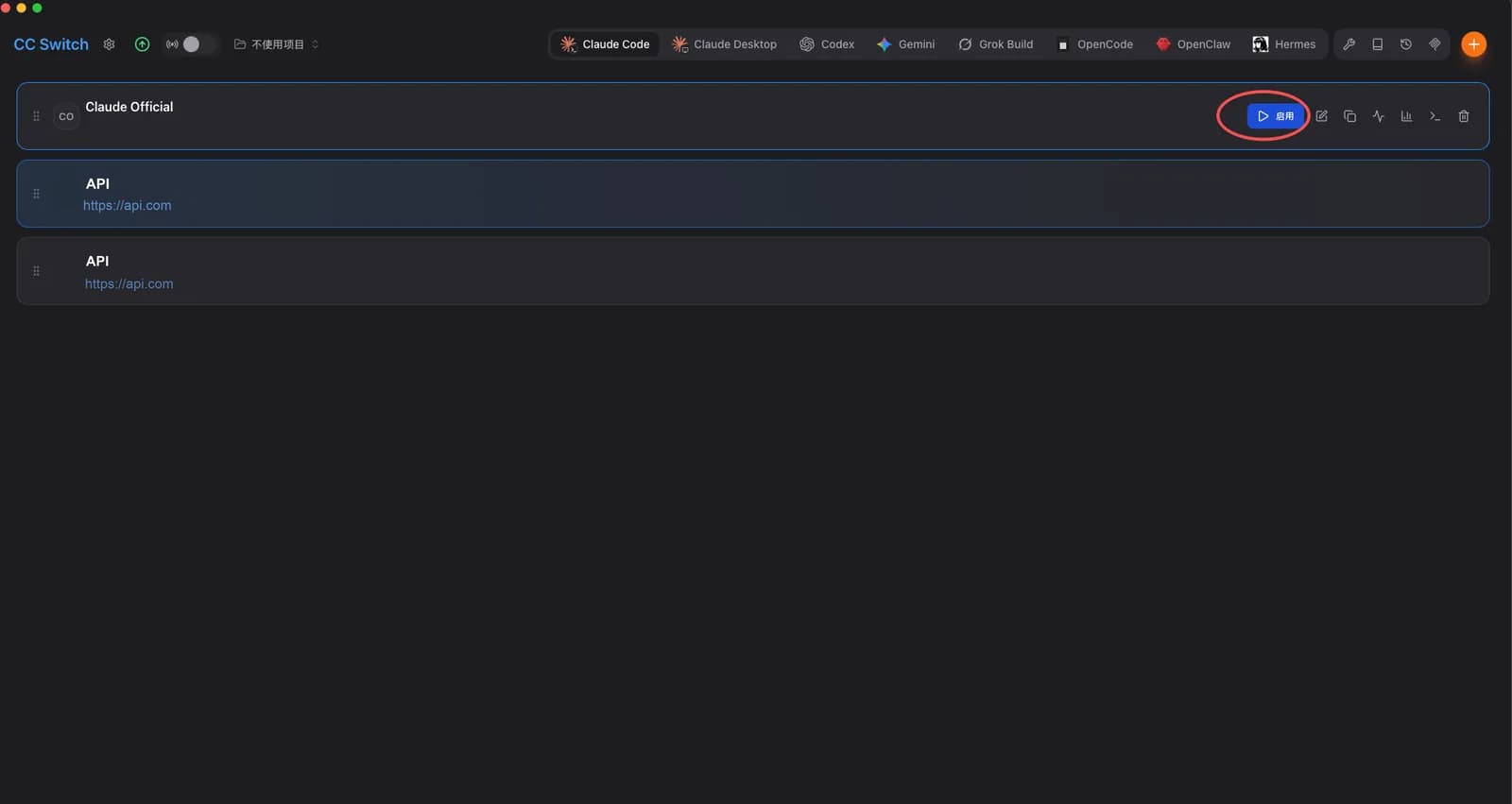
In the screenshot, the red circle marks the same button set revealed by hovering a different row, and HopsAPI-Claude is the one already highlighted as active.
Method C: manual setup
Without CC Switch, two environment variables are all it takes:
# macOS / Linux — add to ~/.zshrc or ~/.bashrc to persist
export ANTHROPIC_BASE_URL="https://hopsapi.com"
export ANTHROPIC_API_KEY="sk-YOUR_KEY"
# Windows (PowerShell) — reopen the terminal afterwards
setx ANTHROPIC_BASE_URL "https://hopsapi.com"
setx ANTHROPIC_API_KEY "sk-YOUR_KEY"ANTHROPIC_BASE_URL takes the bare domain https://hopsapi.com — Claude Code appends /v1/messages
itself. No /v1, no trailing slash.
For a project-scoped setup, put the same two values under env in .claude/settings.json (or ~/.claude/settings.json for a user-wide default):
{
  "env": {
    "ANTHROPIC_BASE_URL": "https://hopsapi.com",
    "ANTHROPIC_API_KEY": "sk-YOUR_KEY"
  }
}
The key sits in this file in plain text. Add a project-level .claude/settings.json to
.gitignore so it never reaches your repository.
Verify
In a project directory, start Claude Code:
cd your-project
claude
Press Esc to skip the sign-in prompt on first launch. Check the header: API Usage Billing means it's billing through the API, and the item before it is the active model.
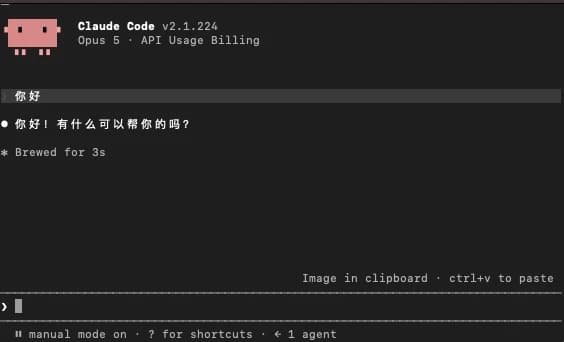
If both look right, you're set. Send any message to start using it.
To inspect the resolved configuration, run /status in the session:
/statusCheck the two lines boxed in red below:
- Anthropic base URL should read
https://hopsapi.com - Model is the model actually in use
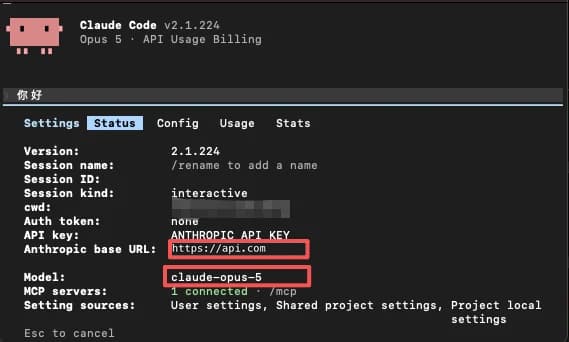
Pick a model
Use /model to switch models mid-session. To pin a default instead, set:
export ANTHROPIC_MODEL="claude-sonnet-5"The available Claude model ids are in available models, and the underlying request/response shape is in Anthropic format. Claude Code sends max_tokens and system in Anthropic's native format automatically — nothing extra to configure.
Only Claude models work here. Claude Code calls /v1/messages, and HopsAPI serves only the
Claude family on that endpoint — a GPT or Gemini id will fail. To reach those, use their own
protocol; see Protocols & endpoints.
Troubleshooting
| Symptom | Fix |
|---|---|
| "Authentication error" | Confirm the Anthropic base URL is right and that the API key is valid. |
| Connection timeouts | Confirm the request URL is exactly https://hopsapi.com, with no /v1 suffix and no trailing slash. |
| Requests still hit Anthropic | Compare the base URL with /status. A stale terminal keeps the old environment variables until you restart it. |
| Model-not-found error | Check ANTHROPIC_MODEL for typos and confirm the id appears in available models. |
| "Open CC Switch" does nothing | CC Switch is missing or too old. Install or upgrade it, then retry. |
| The model dropdowns are empty in the import dialog | The key is incomplete or invalid — the model list is fetched with it. Copy the key again, or create a new one. |
| CC Switch changes have no effect | Claude Code reads its configuration at launch — restart the session after changing anything. |