TraeWork
Add HopsAPI custom models to TraeWork with OpenAI Responses or Anthropic Messages.
TraeWork is an AI work platform for tasks such as creating presentations, data analysis, research, document writing, and coding. It offers Work, Code, and Design modes. Add HopsAPI models to use them in TraeWork workflows.
Before you start
- A HopsAPI account and an API key (get one ↗)
- TraeWork installed or open (visit TraeWork)
Open model settings
Click Settings at the top of TraeWork, choose Models in the settings navigation, then click the option to add a custom model.
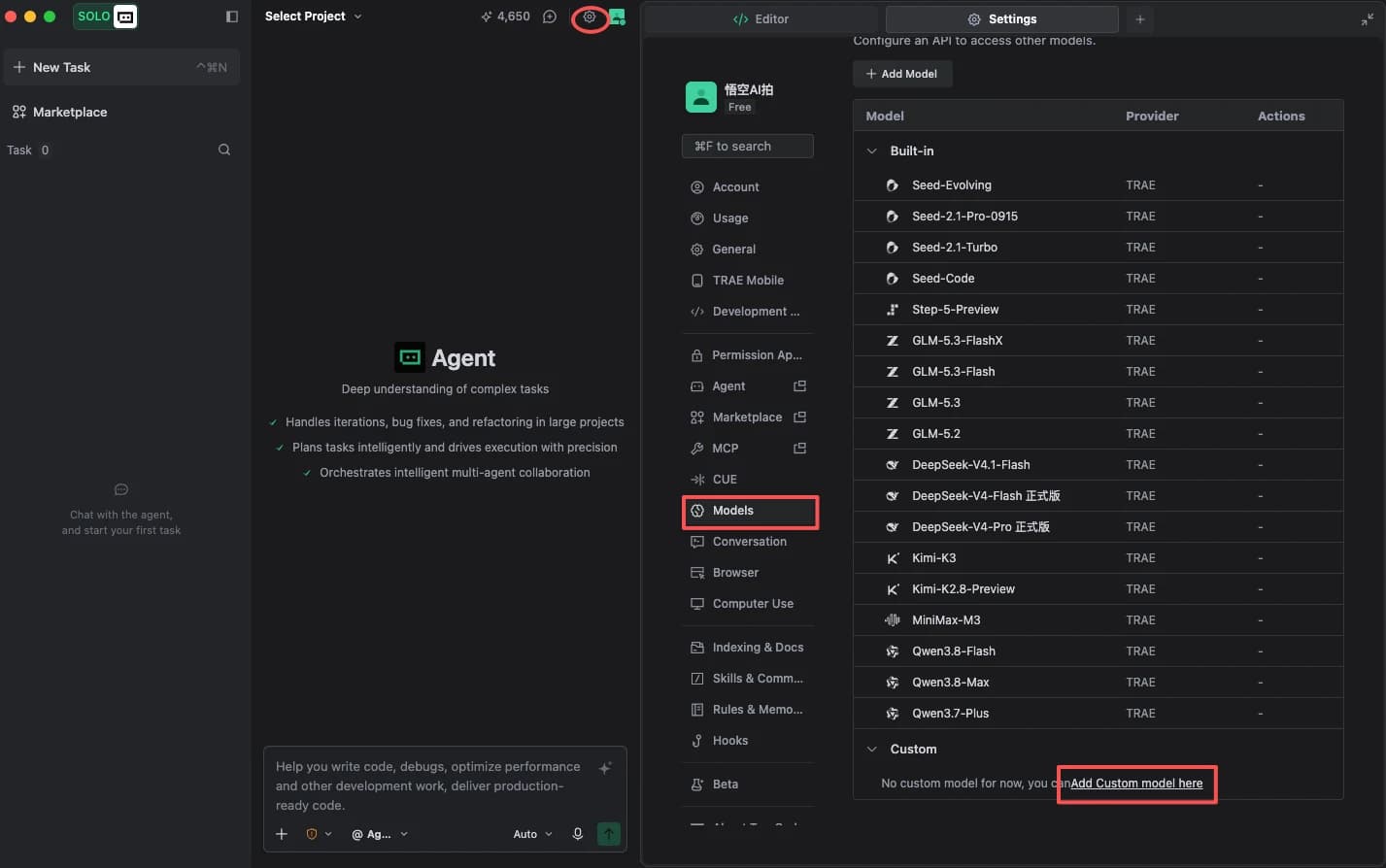
TraeWork custom models support both OpenAI Responses API and Anthropic Messages formats. Choose the format that matches the model you are adding.
Configure a GPT model
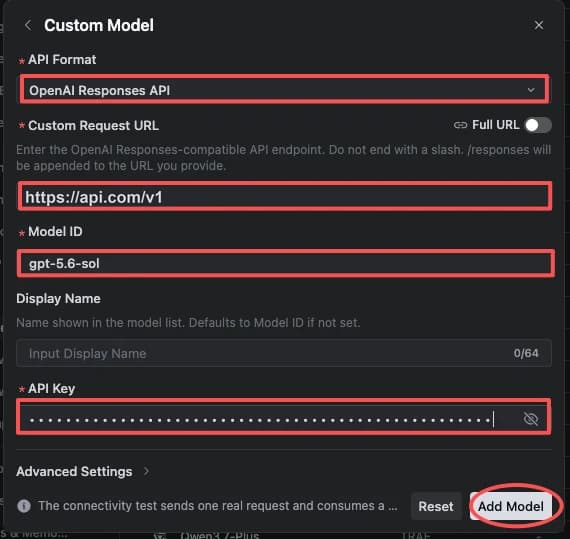
Choose OpenAI Responses API under API format, then enter the following:
| Field | Value |
|---|---|
| Custom request URL | https://hopsapi.com/v1 |
| Model ID | The GPT model ID you want, such as gpt-5.6-sol |
| API key | Your HopsAPI API key |
Leave Full URL turned off. TraeWork appends /responses to the request URL, so do not add a trailing slash. Click Add model when finished.
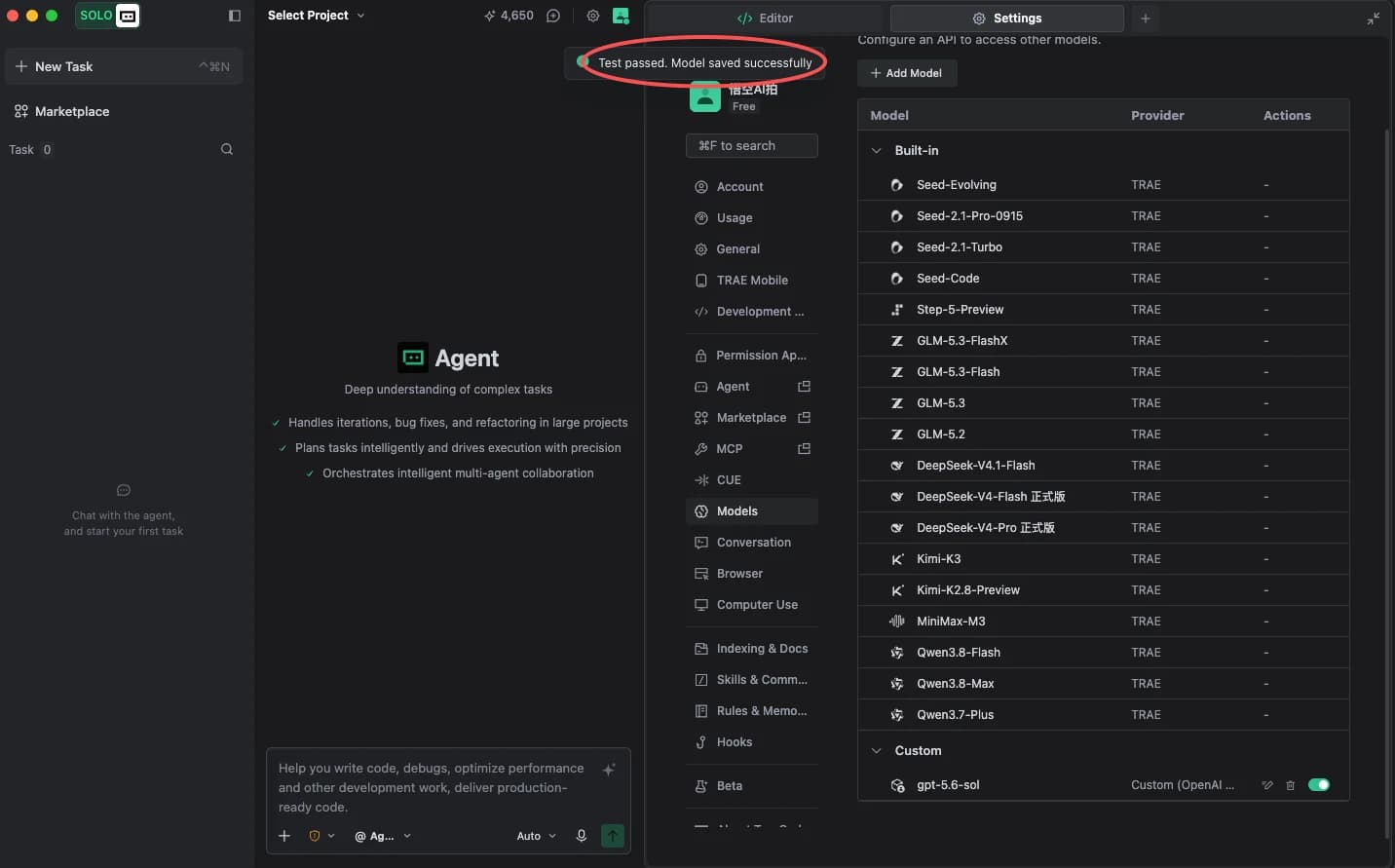
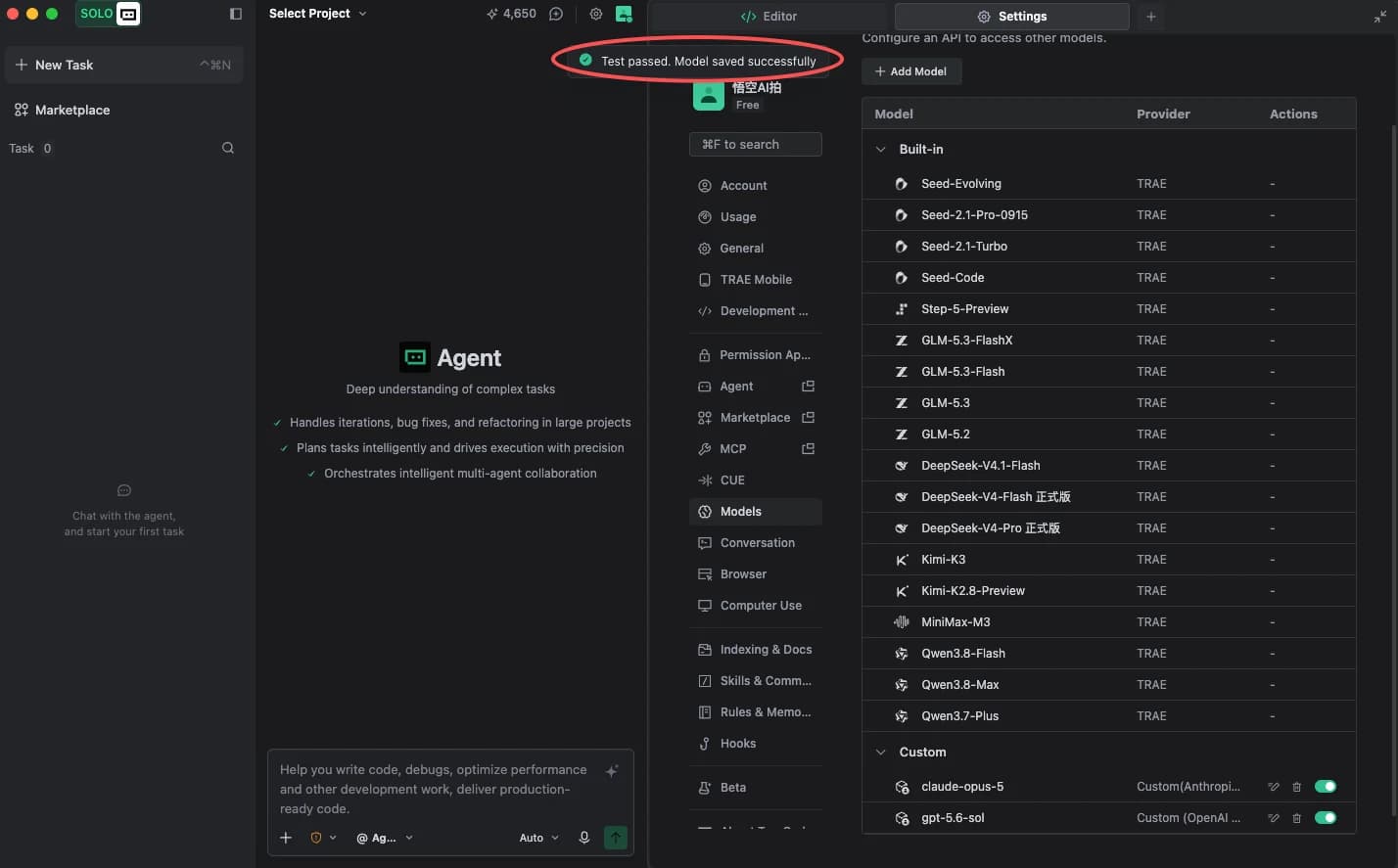
The message Test passed, model saved confirms that the model is configured.
Configure a Claude model
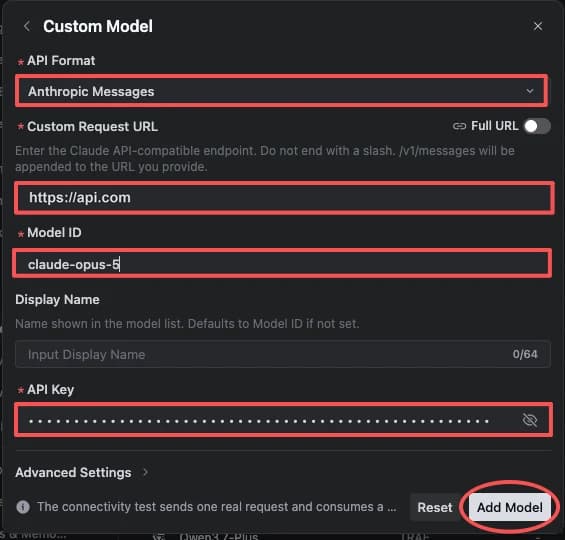
Add another custom model. Choose Anthropic Messages under API format, then enter the following:
| Field | Value |
|---|---|
| Custom request URL | https://hopsapi.com |
| Model ID | The Claude model ID you want, such as claude-opus-5 |
| API key | Your HopsAPI API key |
Leave Full URL turned off. TraeWork appends /v1/messages to the request URL, so do not add a trailing slash. Click Add model when finished.
The message Test passed, model saved confirms that the model is configured.
Enter the API key only in TraeWork's model settings. Mask it before sharing or capturing a screenshot.
Choosing a model
See List models or the console's Pricing page for available models and their IDs. Use the exact model ID from the list, without a channel prefix. TraeWork custom models are for chat models; use the corresponding media APIs for image and video generation.
Troubleshooting
The endpoint is rejected
Check that the API format matches the model: OpenAI Responses API for GPT models and Anthropic Messages for Claude models. Verify the request URL and remove any trailing slash.
Authentication fails
Check that the API key was copied in full from the console with no extra spaces or line breaks. For a 401 error, see Errors.
The test fails or the model is not saved
Check that the model ID is correct, the API key is valid, and the account has enough balance and key limit. The connection test sends a real request and uses a small amount of model tokens.